


Account security: profile, password and two-step verification
The Profile page gathers everything that protects your account. To open it, click your avatar (initials) in the upper right corner and choose Profile.
Individual and company: in Profile, the Account type field shows “Individual” or “Legal entity”. The rest of the page is the same. See Using Assin as an individual.
Personal information
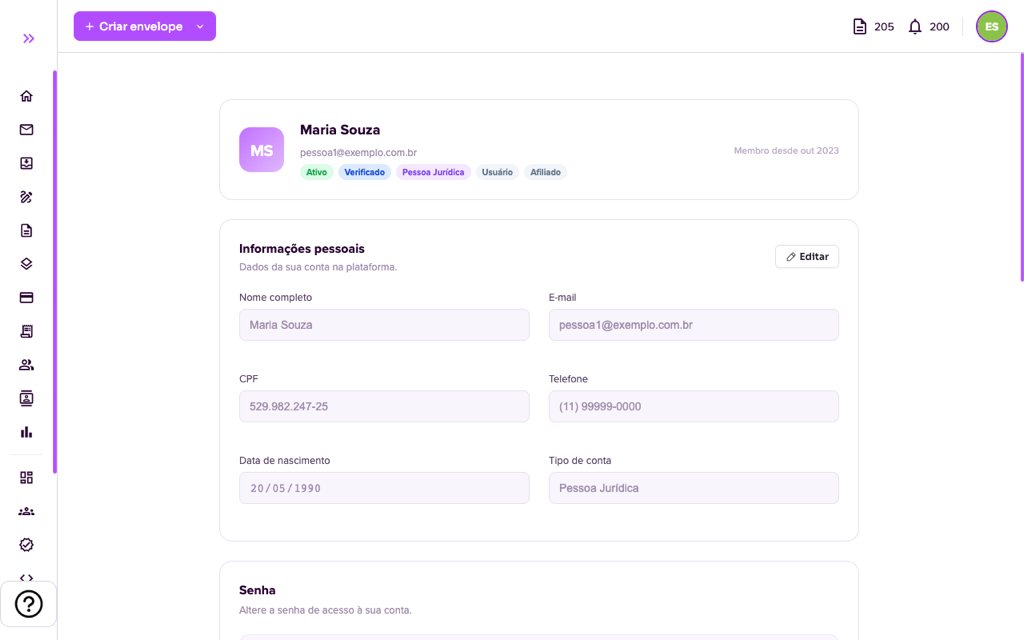
At the top you see your name, e-mail and account badges (Active, Verified, person type and role). In Personal information are full name, e-mail, CPF, phone, date of birth and account type. Click “Edit” to change the allowed data and save. The date of birth must show you are over 18.
Change the password
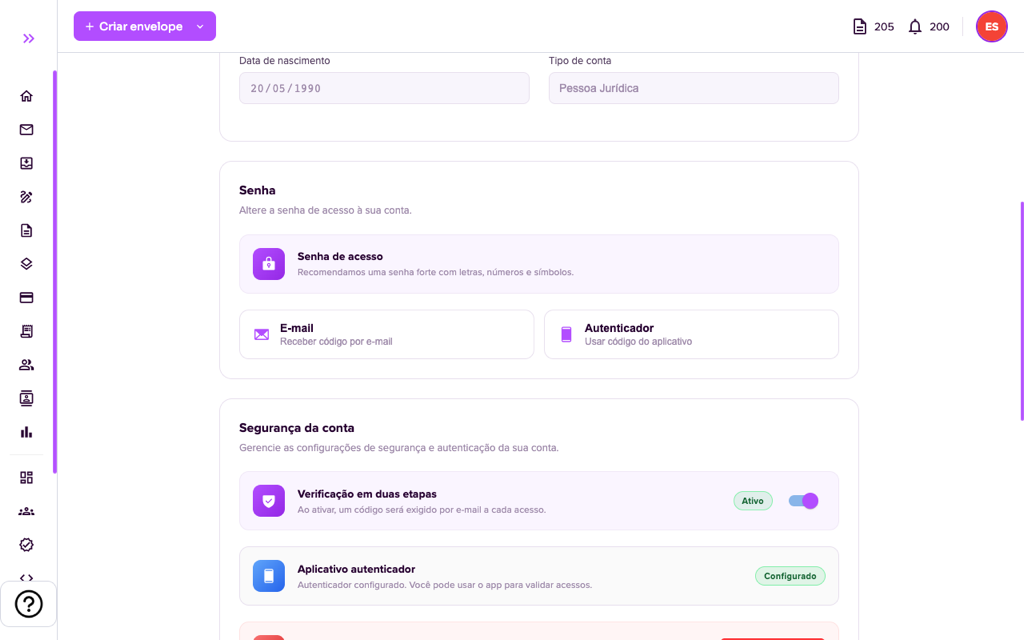
1. Under Password, click “Change password”.
2. For security, the platform asks for a confirmation code. Choose how to receive it: E-mail (receive code by e-mail) or Authenticator (use the app code).
3. Type the 6-digit code, the new password (minimum 8 characters) and the confirmation. Confirm and done: the password is updated. If you do not recognize a password change, contact Support immediately.
Forgot your password and cannot sign in? See Password Recovery.
Two-step verification
Under Account security you control:
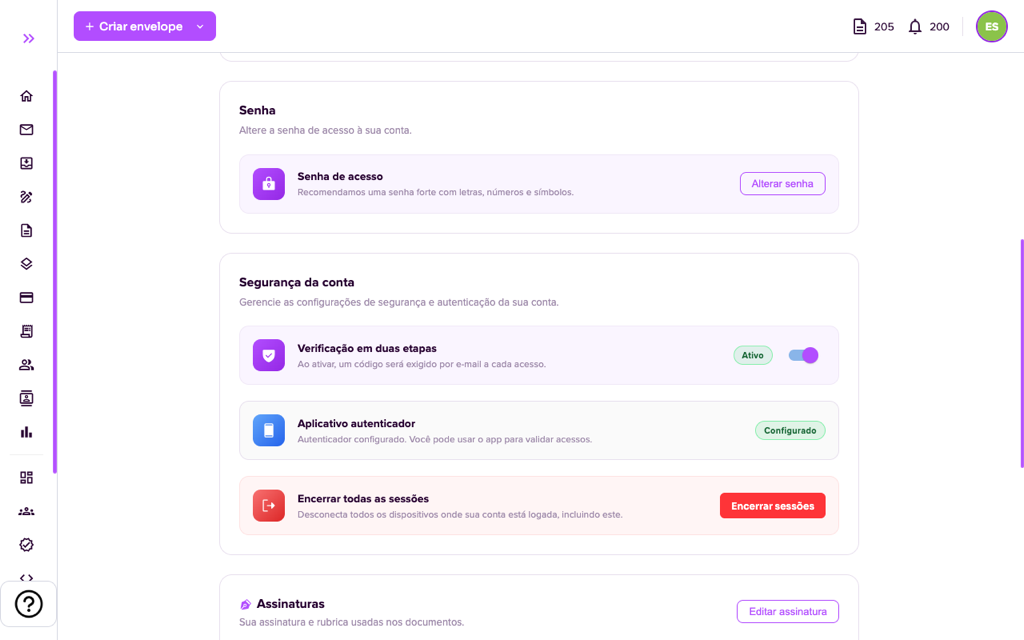
- Two-step verification: when active, a code sent by e-mail is required at every login, besides the password. Use the switch to turn it on or off.
- Authenticator app: optional setup for extra security. After it is set up, the status “Configured” appears and you can validate logins with the app code (Google Authenticator, Microsoft Authenticator etc.). See the step by step in How to Enable Two-Factor Authentication (OTP).
- End all sessions: disconnects all devices where your account is logged in, including the one you are using. Use it if you lost a device or logged in on a shared computer.
Your signature and initials
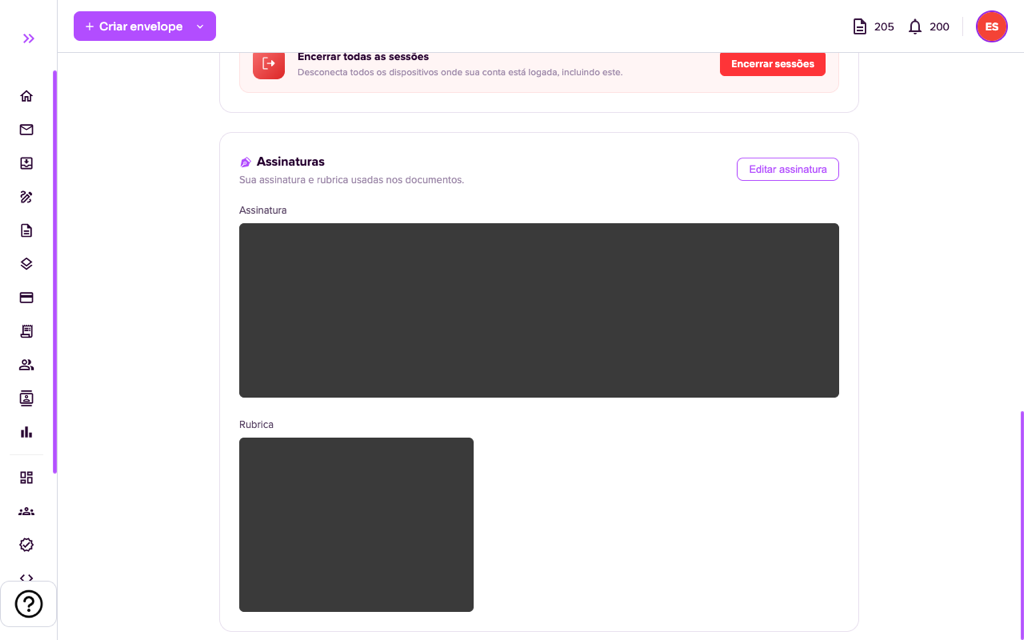
Under Signatures are the signature and initials Assin uses on your documents. Click “Edit signature” to draw again or generate another one. See also How to sign an envelope?.
Good practices
- Use a strong password, with letters, numbers and symbols, and never reuse it in other services.
- Turn on two-step verification.
- Do not share codes received by e-mail or in the app, nor signing links.
- If you notice any strange activity on your account, change your password and end all sessions.
For more information visit our website https://assin.com.br/
See how simple it is, Assin?
Assin Digital Signature
Was this article helpful?
Thanks for your feedback!