


Batch signing: create and send a batch of envelopes
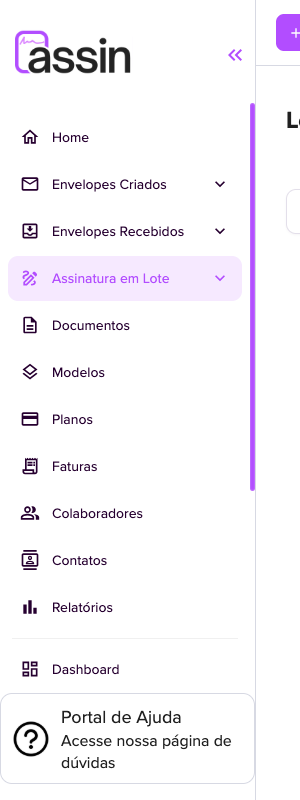
The batch lets you create and send several envelopes with a single click. It is ideal for hiring contracts, membership forms or any document repeated for many people. You find batches in the side menu, under Batch Signing, in the Sent option.
Company only (PJ): This feature is not available on the individual account. See the difference in Using Assin as an individual.
How it works
A batch has two kinds of signers:
- Common Signers: sign all the envelopes of the batch and receive a single e-mail with all the documents.
- Specific Signers: each person generates their own envelope inside the batch (1 credit per envelope).
Create a batch
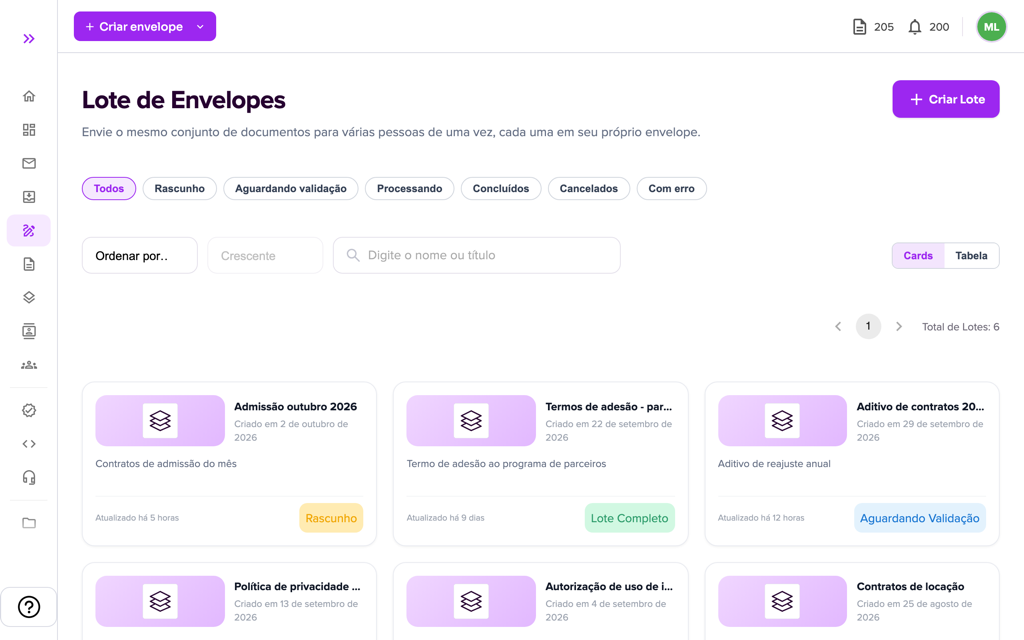
1. In Batch Signing > Sent, the Batch of Envelopes screen lists your batches, with title, date, last update and status (Draft, Processing, Waiting for Validation…). Click “Create Batch”.
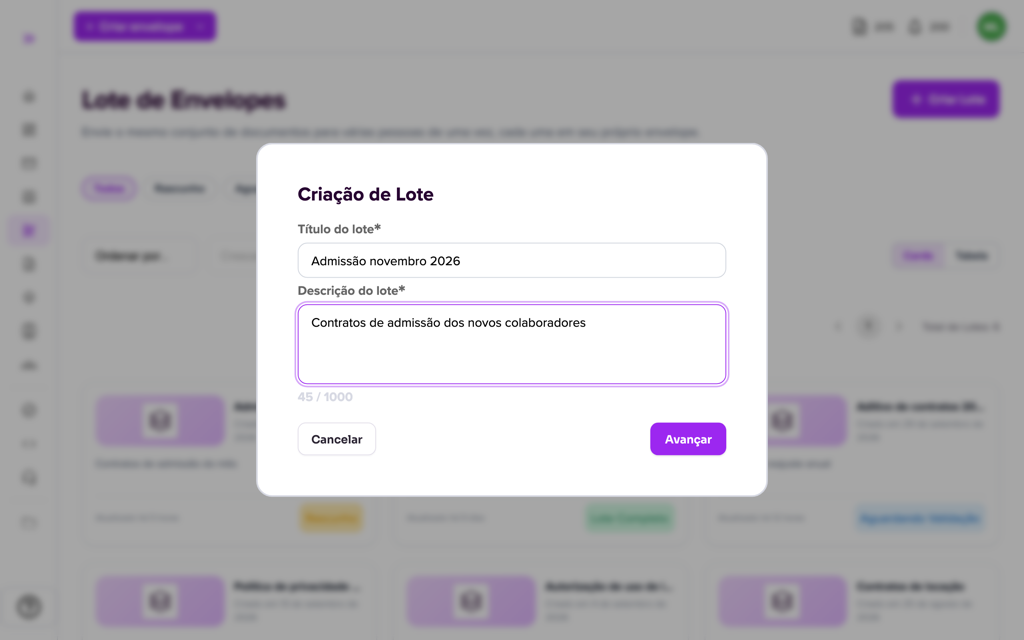
2. Enter the batch title and description (both required) and click “Next”.
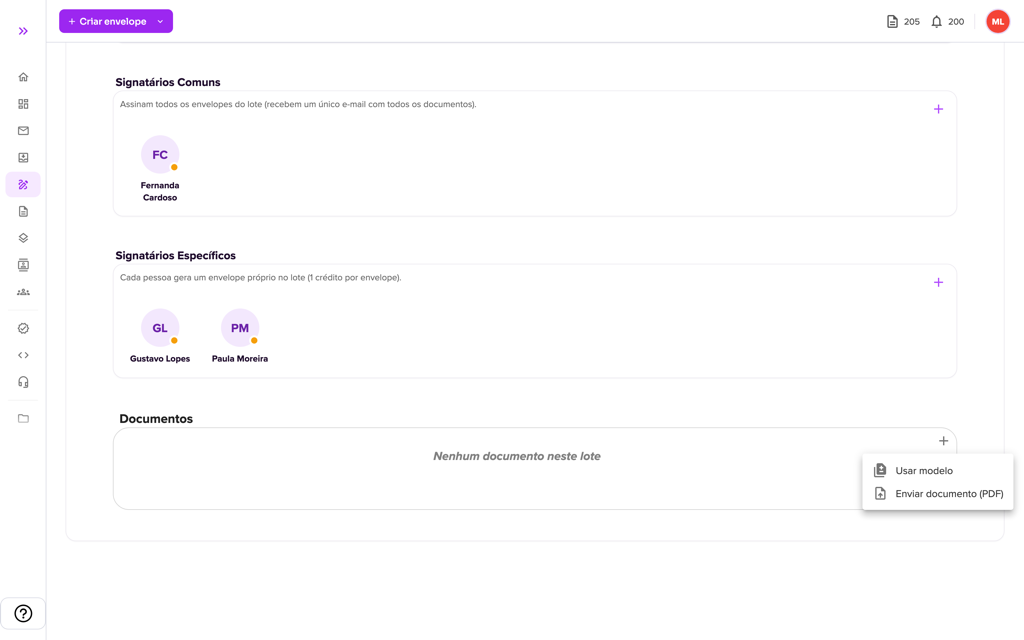
3. You arrive at Batch Details, with Draft status. This screen holds the batch information, the common signers, the specific signers and the documents.
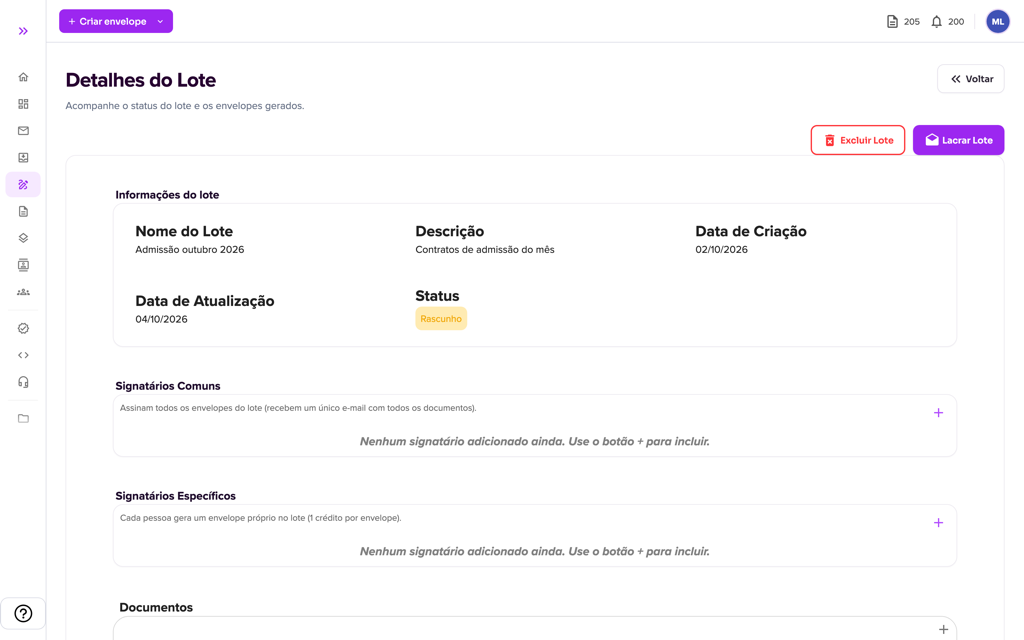
4. Click the + of Common Signers or Specific Signers to add people. The form is the same as for the envelope (name, e-mail, phone, type, document photo and e-mail validation). See the details in Envelope creation.
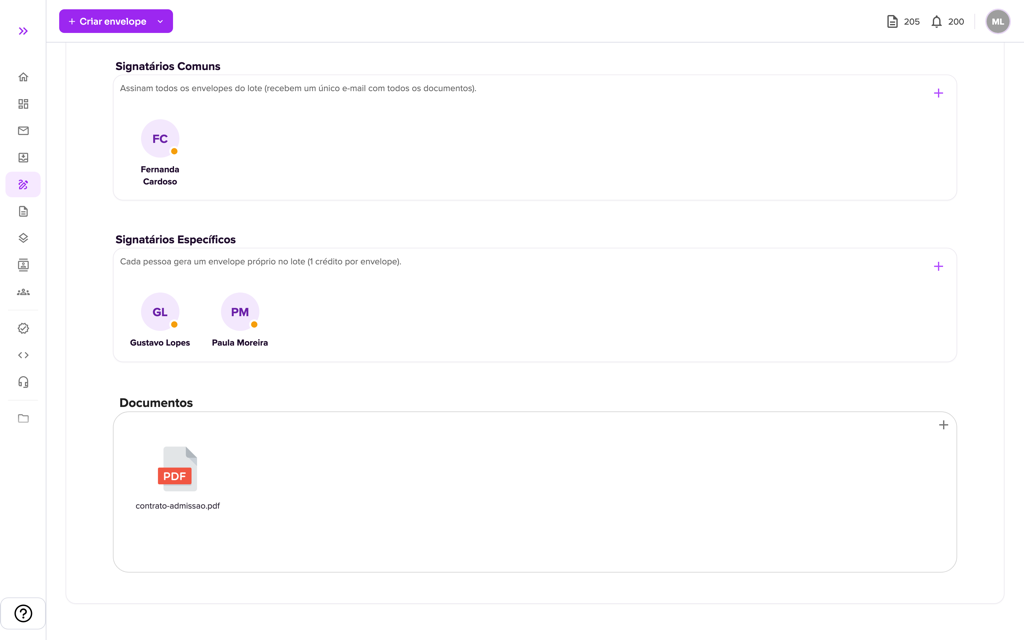
5. In the + of Documents, choose how to build the batch document:
- Upload document (PDF): attaches the same PDF for everyone. Click the document and “Add Tags” to place the signature fields.
- Use template: generates a personalized document for each specific signer from a template.
Using a template
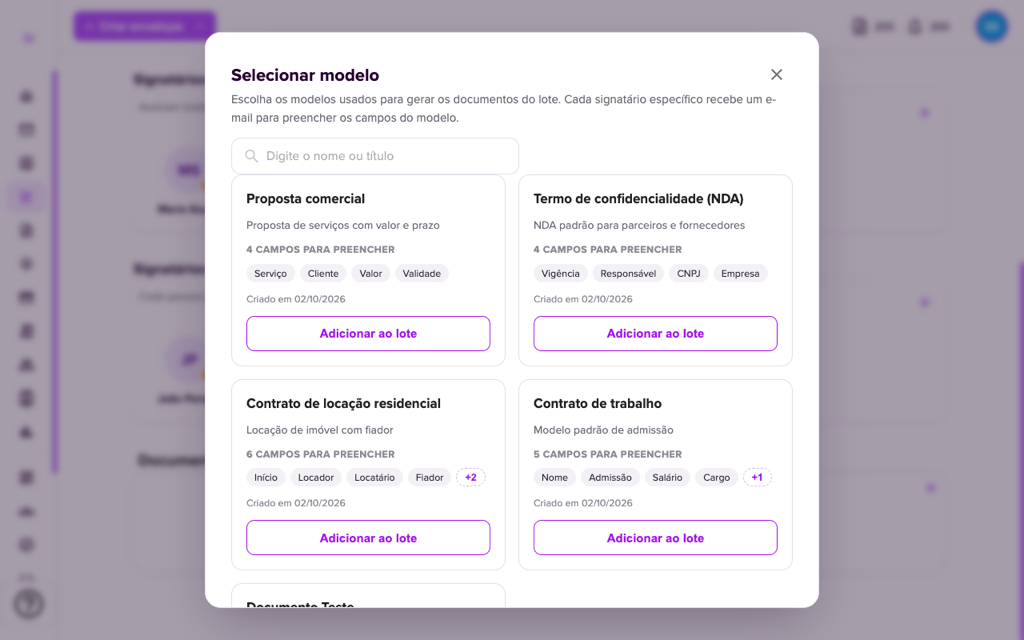
When you choose “Use template”, the Select template window opens. Use the search by name or title, see on the cards the description, the fields to be filled in and the creation date, and click “Add to batch” on the desired templates. Then click “Finish”. To create templates, see Create templates.
With a template, the open document shows the Export Excel and Import Excel buttons: export the spreadsheet, fill in one row per signer with the template fields and import the .xlsx file. Each import adds new rows; to fix a mistake, delete the batch and recreate it.
Send the batch
6. With everything ready, click “Seal Batch”. The platform warns if a document or signer is missing. After sealing, the platform creates the envelopes (this may take a few minutes; refresh the page to follow).
- In batches with a template, each specific signer receives an e-mail to check and confirm the document data. When everyone validates, the envelopes proceed to signature. Follow in Created Envelopes.
- Signers receive the e-mail with the signature request and sign on a single screen. See How to sign an envelope?.
While the batch is in Draft you can still delete documents, signers or the batch itself (“Delete Batch”).
Sign several envelopes at once by marker
If you already have envelopes created and want the same person to sign all of them at once, use Markers: see How to use Markers.
For more information visit our website https://assin.com.br/
See how simple it is, Assin?
Assin Digital Signature
Was this article helpful?
Thanks for your feedback!