


Collaborators and permissions
On a company (legal entity) account you can invite your team to use Assin with the right permissions for each person. How many collaborators you can have depends on your plan (see Plans).
Company only (PJ): This feature is not available on the individual account. See the difference in Using Assin as an individual.
Where they are
1. In the side menu, click Collaborators. The Users screen lists the people in the company with name, role, CPF, e-mail and status. Use the search, the All, Active, Pending and Disabled tabs and the layout button (cards or Table) to find someone.
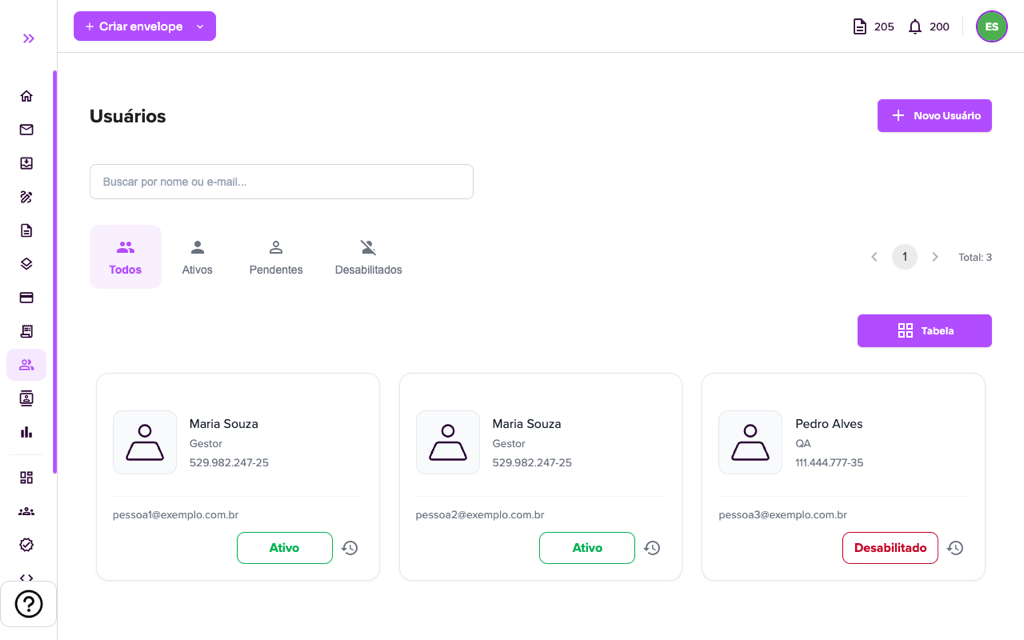
The statuses are: Active, Pending (invitation sent, the person has not activated access yet) and Disabled. The clock icon next to the status opens the collaborator’s history.
Invite a collaborator
2. Click “New User”. In the New Collaborator window, fill in Full name, E-mail, CPF and Position (for example, Human Resources).
3. Set the permissions with the switches:
- Manager / Administrator: access to the company panel (Dashboard), reports, plans and integrations.
- Send Documents / Can Send: can create and send envelopes. Without this permission the person can only view.
- Manage Users / Can Manage: can invite and manage other collaborators.
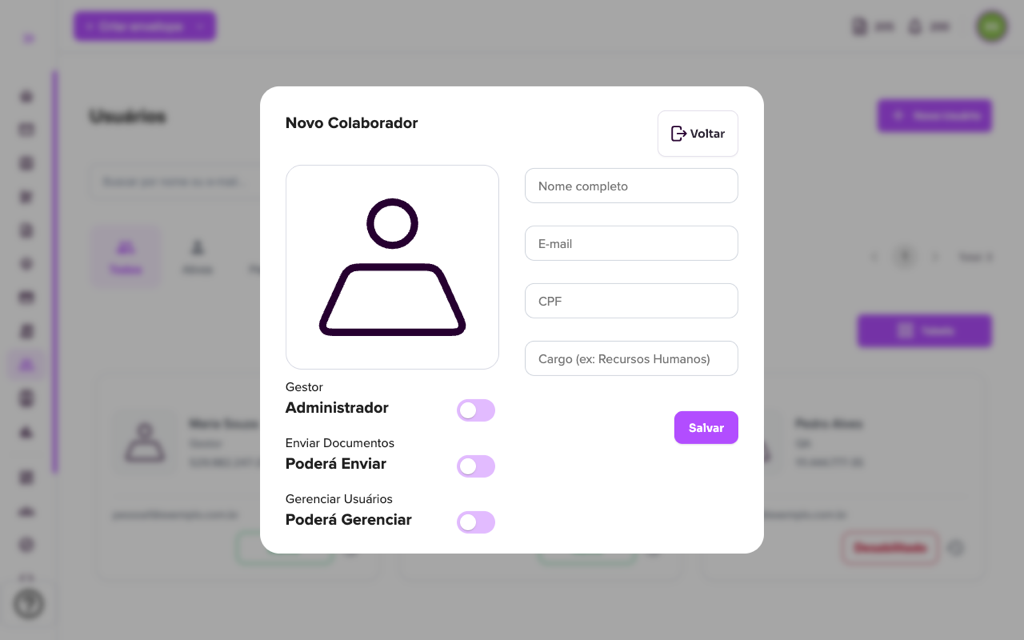
4. Click “Save”. The collaborator receives an invitation e-mail to the company. If they already have an Assin account, access to the company is linked to the existing registration. Until they accept, the status stays Pending.
Edit or disable
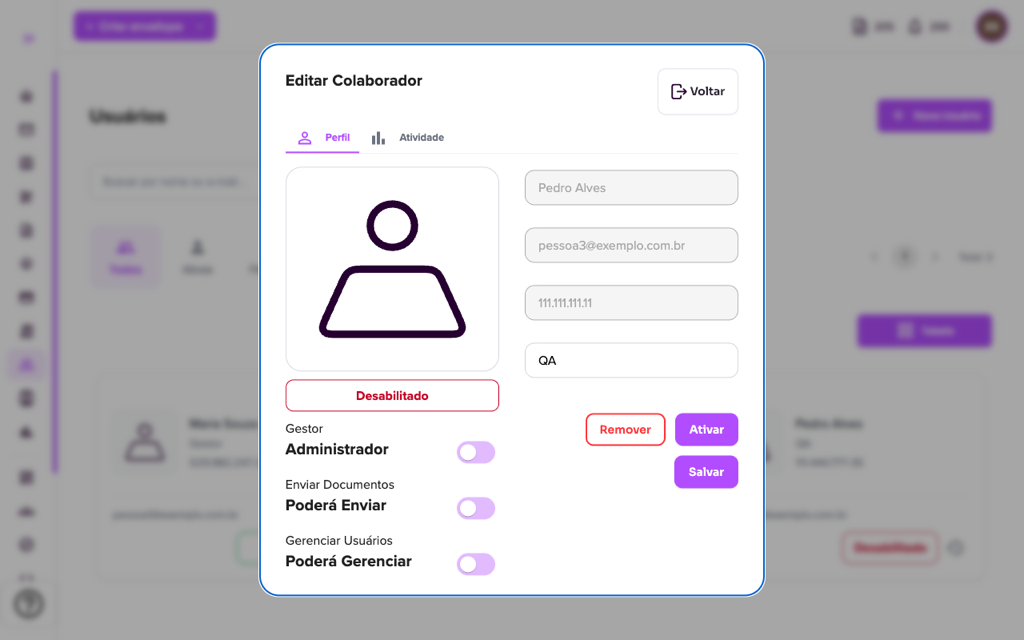
5. Click the collaborator to open Edit Collaborator. On the Profile tab you change the position and permissions and click “Save”, or use “Activate” / disable the access (the status is highlighted) or “Remove” to take the person out of the company. The Activity tab shows their history. Disabled collaborators can no longer access the company, but the envelopes they created stay in the account.
The Collaborators report shows the team, permissions and status in a table you can export.
For more information visit our website https://assin.com.br/
See how simple it is, Assin?
Assin Digital Signature
Was this article helpful?
Thanks for your feedback!