


How to Enable Two-Factor Authentication (OTP)
Two-factor authentication (OTP) adds an extra layer of security to your account.
In addition to your password, you will need to provide a temporary code generated by an authenticator app.
This code updates automatically every few seconds and can only be accessed through the app installed on your phone. This way, even if someone discovers your password, they won’t be able to access your account without the code generated on your device.
Below is how to enable this feature.
Accessing Your Profile
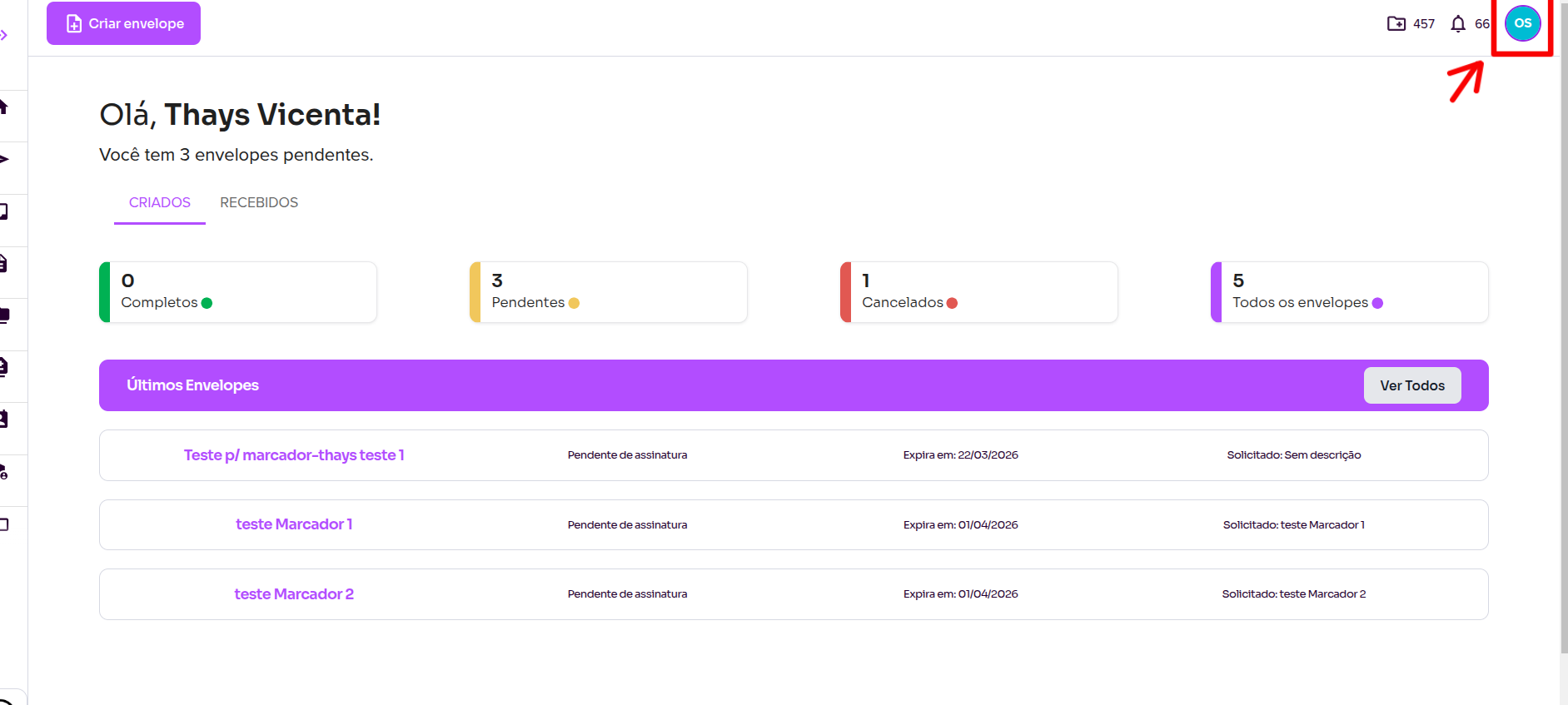
1. On the Home screen of the platform, locate the profile icon in the top right corner.
2. Click the icon and select Profile.
Enabling Two-Factor Authentication
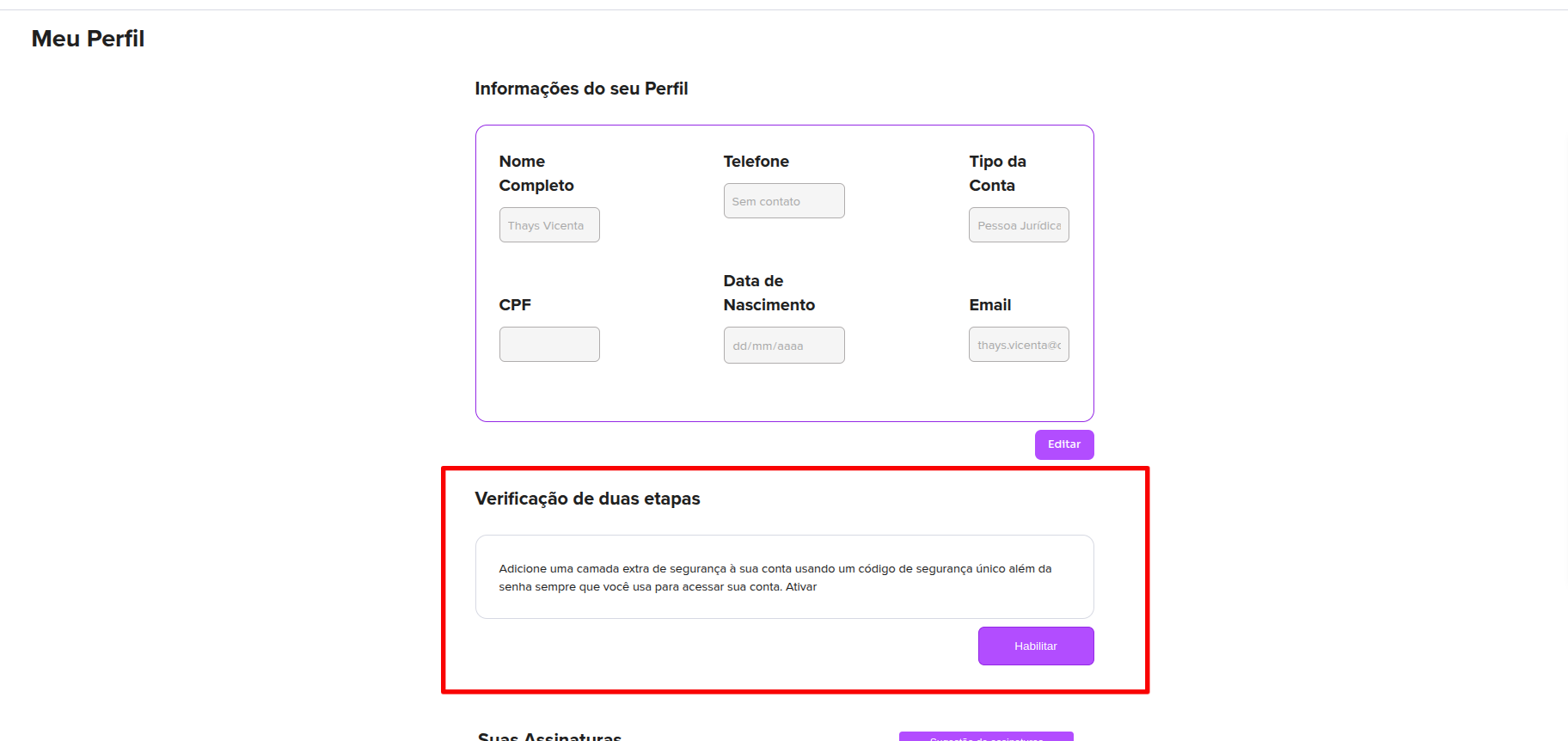
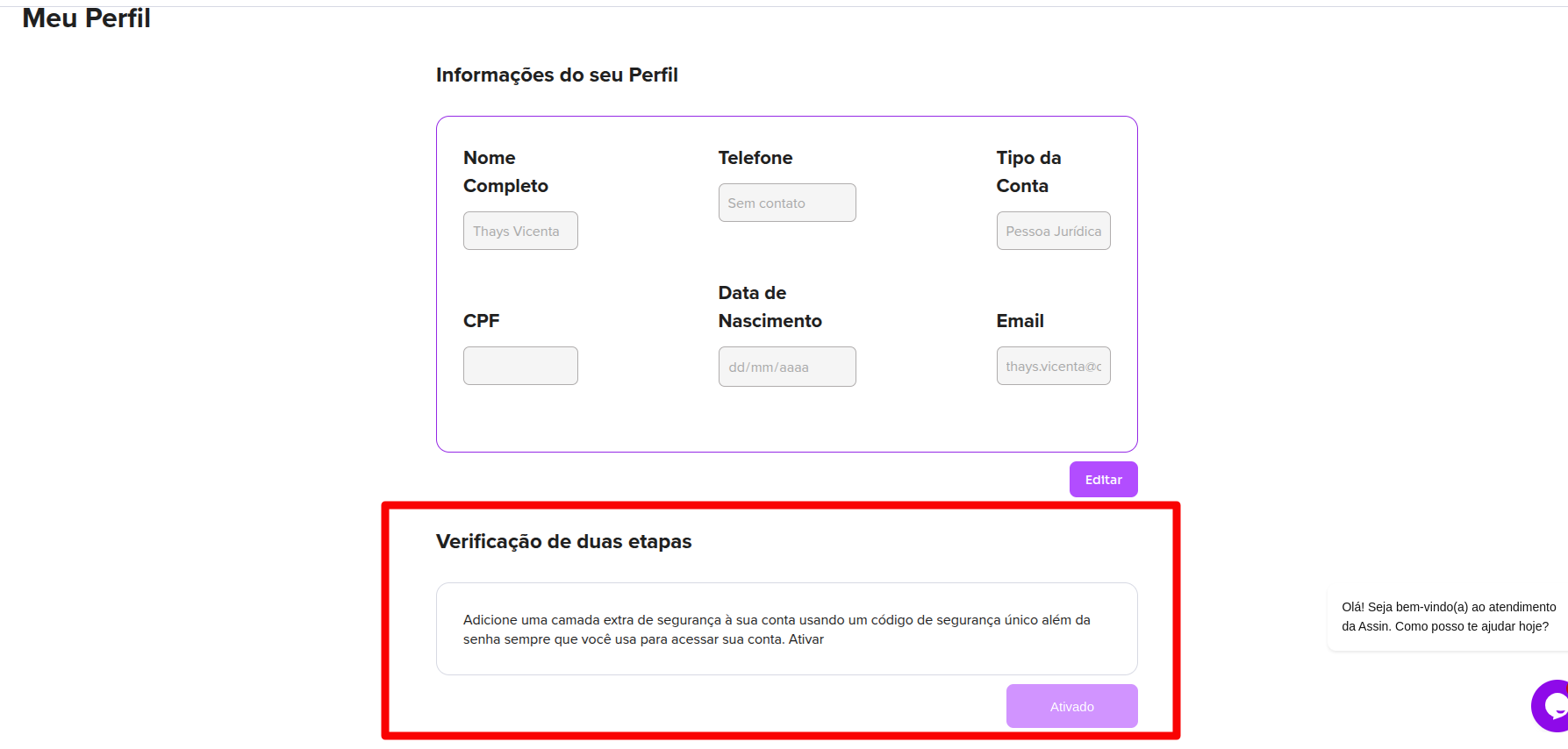
1. On the Profile screen, locate the Two-Factor Authentication section.
2. In this section, the following description will appear:
Add an extra layer of security to your account using a unique security code in addition to your password whenever you access your account.
3. Click the Enable button.
Confirming Activation via Email
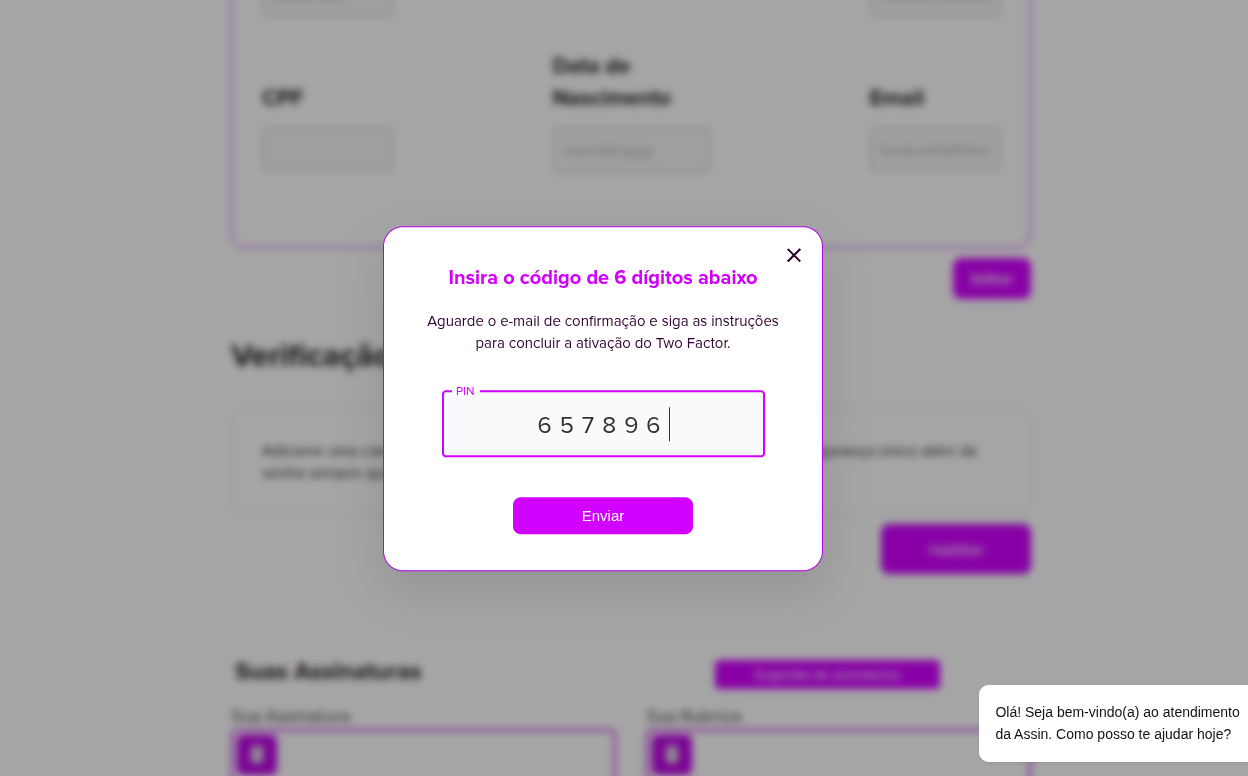
After clicking Enable, a modal will appear requesting a confirmation code sent to your email.
Steps:
1. Check your inbox.
2. Copy the 6-digit code received via email.
3. Enter the code in the field provided.
4. Click Submit.
Setting Up the Authenticator App
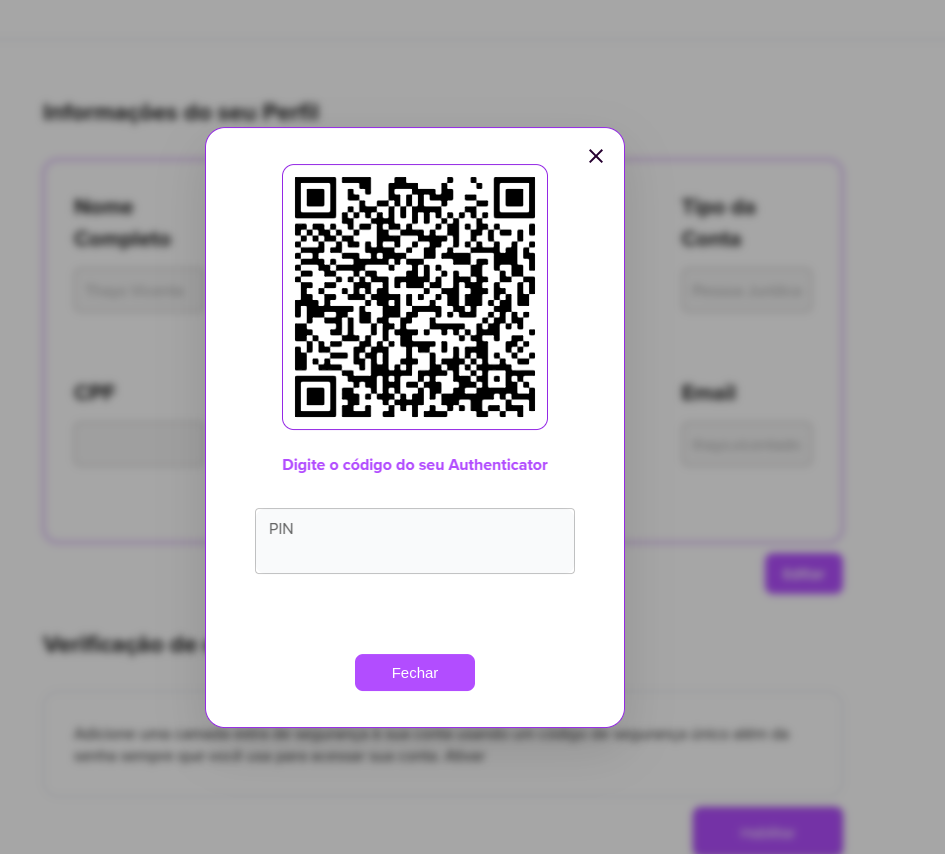
After confirming the email code, a new modal will appear with a QR Code.
1. Open the authenticator app on your phone.
2. Choose the option to add a new account.
3. Scan the QR Code displayed on the screen.
4. The app will start generating a temporary authentication code.
Confirming the Authenticator Code
After scanning the QR Code:
1. Enter the code generated by the authenticator app in the provided field.
2. Validation will occur automatically.
No button click is necessary. Once the code is validated, the modal will close automatically.
Verification Activated
After confirming the authenticator code, two-factor authentication will be activated.
On the Profile screen, the Two-Factor Authentication section will show the status Enabled.
How It Works After Activation
Once two-factor authentication is enabled:
1. When logging into the platform, enter your email and password as usual.
2. You will then be prompted for the authenticator app code.
3. Open the app and enter the code displayed.
This process ensures that only you can access your account, even if someone else knows your password.
Was this article helpful?
Thanks for your feedback!