


How to use Markers
Markers (also called labels) organize your envelopes by category and make it easy to sign several envelopes at once. You group several envelopes under the same marker and follow everything on a single screen.
Company only (PJ): This feature is not available on the individual account. See the difference in Using Assin as an individual.
Where markers are
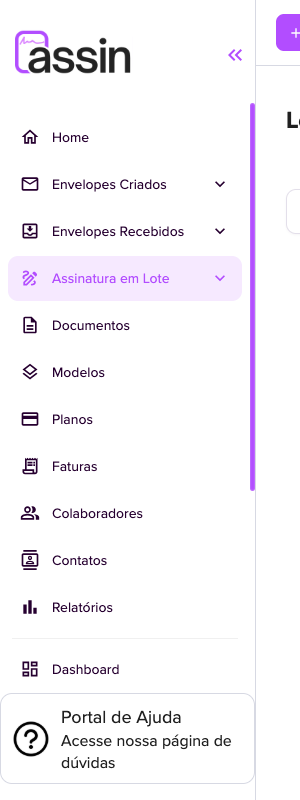
1. In the side menu, click Batch Signing and then Markers (a beta feature). The other option, Sent, is the list of batches: see Batch signing.
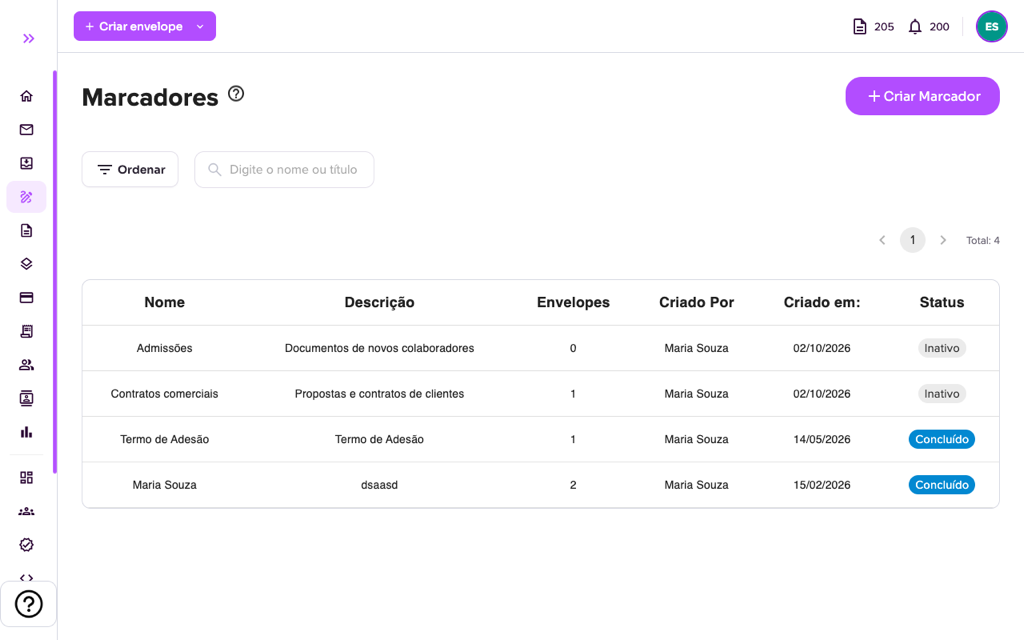
2. On the Markers screen you see all markers with name, description, number of envelopes, creator, date and status (for example, Inactive when there is no signing in progress yet and Completed when all envelopes have been signed). Use “Sort” or the search by name or title to find a marker.
Create a marker
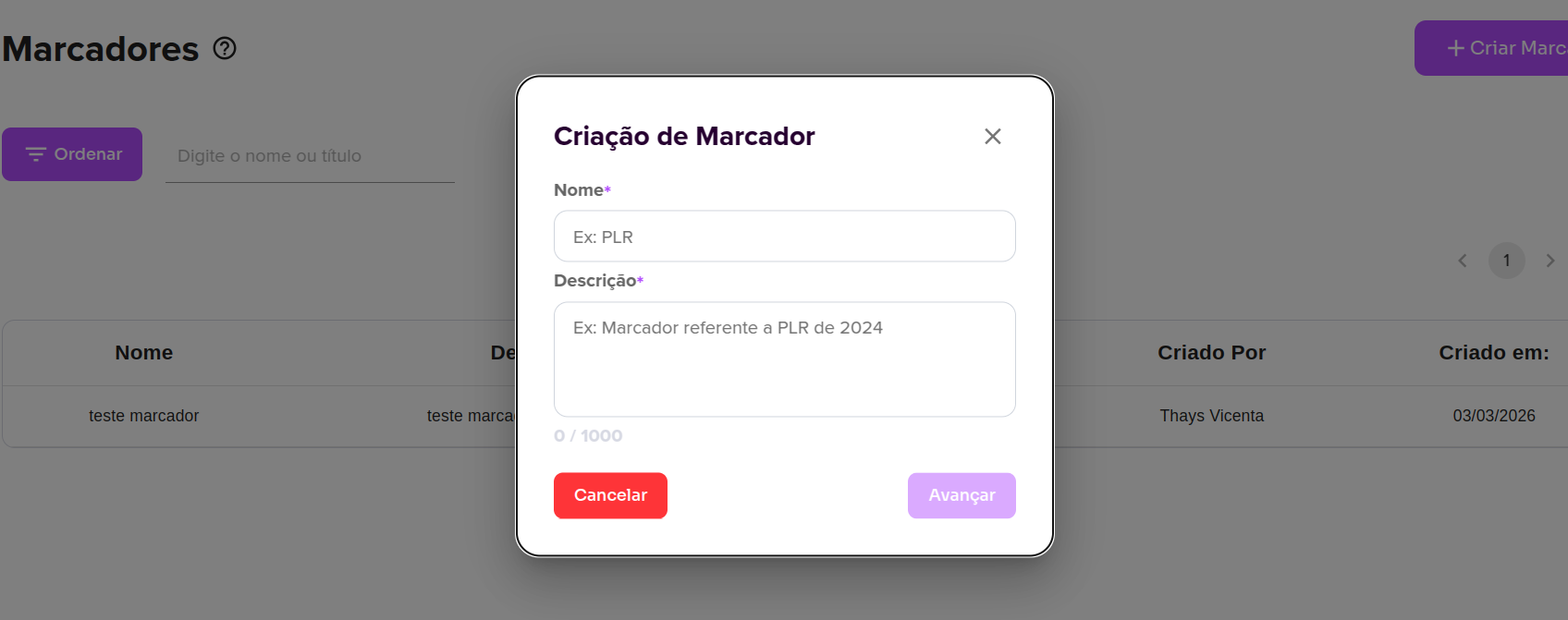
3. Click “Create Marker” (upper right corner). Fill in the Name and the Description (both required) and click “Next”.
4. To link envelopes to the marker, choose the marker in the Add Marker field when creating the envelope. See How to tag an envelope. To follow the marker, see Marker Details.
Now it is much simpler to organize your envelopes!
For more information visit our website https://assin.com.br/
See how simple it is, Assin?
Assin Digital Signature
Was this article helpful?
Thanks for your feedback!
Didn't find what you were looking for?
Our team answers Monday to Friday, during business hours. Count on us.