


Marker Details
When you click a marker in the list (Batch Signing > Markers), you open the Marker Details screen.
Company only (PJ): This feature is not available on the individual account. See the difference in Using Assin as an individual.
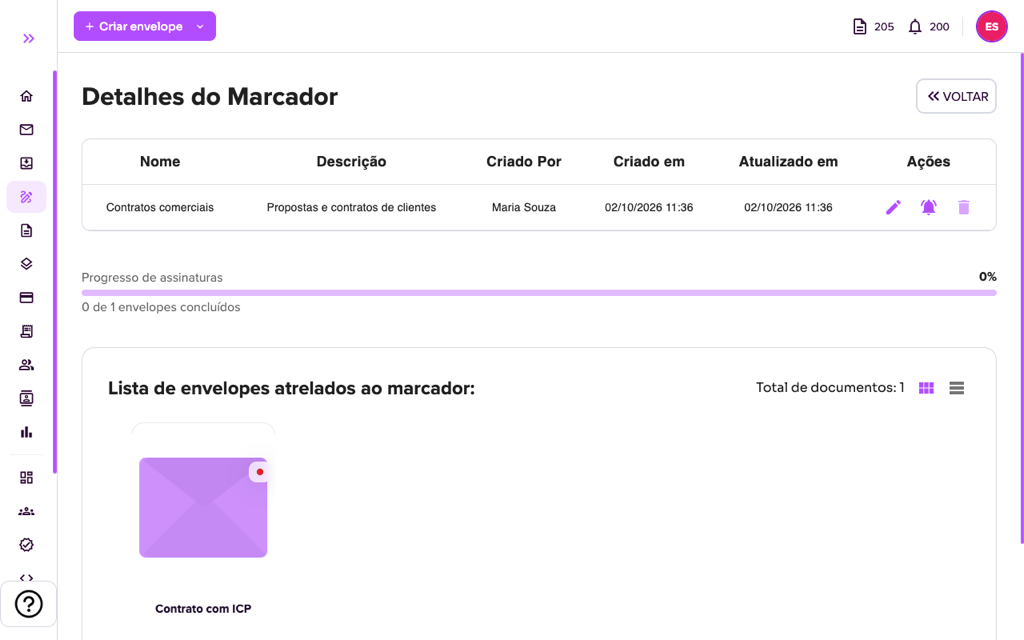
1. At the top are the name, the description, who created it, the creation date and the update date.
2. In the Actions column there are three icons:
- Pencil (Edit Marker): changes the name and description.
- Bell (Notify signers to sign in batch): sends the signers the notice to sign all the envelopes of the marker at once. See Sign envelopes by Marker.
- Trash (Delete Marker): deletes the marker. The platform warns that it will be removed from all linked envelopes and asks for confirmation.
3. The Signing progress bar shows how many envelopes of the marker are already completed (for example, “0 of 1 envelopes completed”).
4. Below, the List of envelopes linked to the marker shows the total of documents. Switch between cards and table with the layout icons and click an envelope to see the details.
For more information visit our website https://assin.com.br/
See how simple it is, Assin?
Assin Digital Signature
Was this article helpful?
Thanks for your feedback!
Didn't find what you were looking for?
Our team answers Monday to Friday, during business hours. Count on us.