


Edit Envelope
Only the envelope creator or a company administrator can edit it, and what can be changed depends on the status:
- Draft: everything can be edited (information, signers, documents and fields).
- Blocked (and with no signatures): you can edit the information, add or remove signers, delete documents and reposition the fields. To get to this status, see Block Envelope.
- Waiting for signature: there is no general editing, but you can fix the data of a signer who has not signed yet (see step 3).
1. In the side menu, open Created Envelopes and click the envelope you want to edit.
2. In the Envelope information area, click the pencil icon (right corner). In the Edit envelope information window you change the title, description, expiration date (Expires on) and Marker. Remember to save.
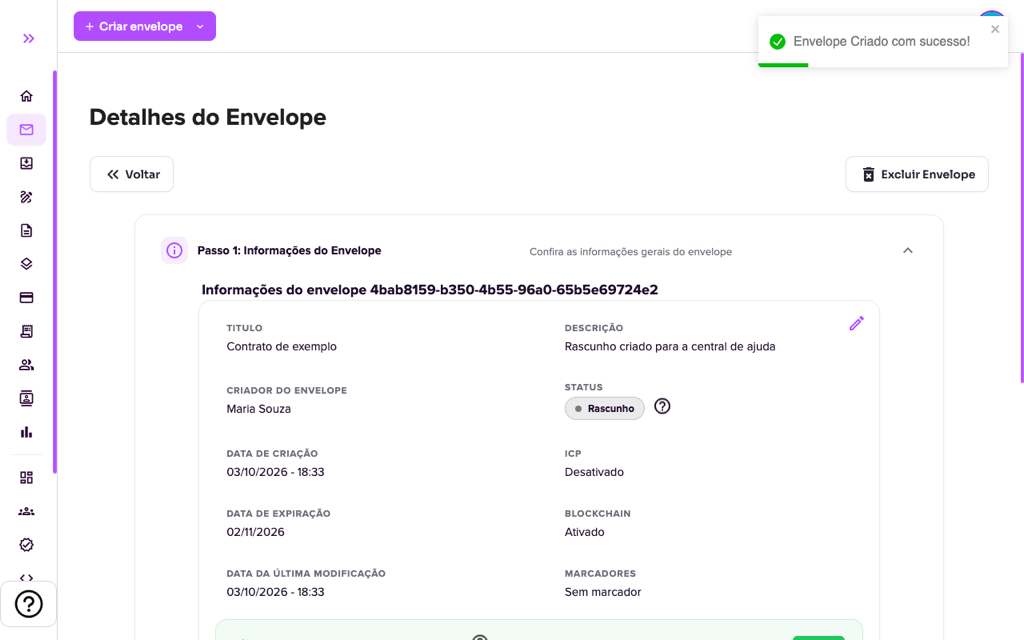
3. For the signers, use “Add signer” or the group icon (Import signer group). Click a signer to open their window: there you can use “Edit data” (name, e-mail and phone) or delete them. If the envelope was already sealed and the signer has not signed yet, “Edit data” is still available; when the e-mail is changed, the new address receives the signature request and signing starts to require confirmation with a code sent by e-mail.
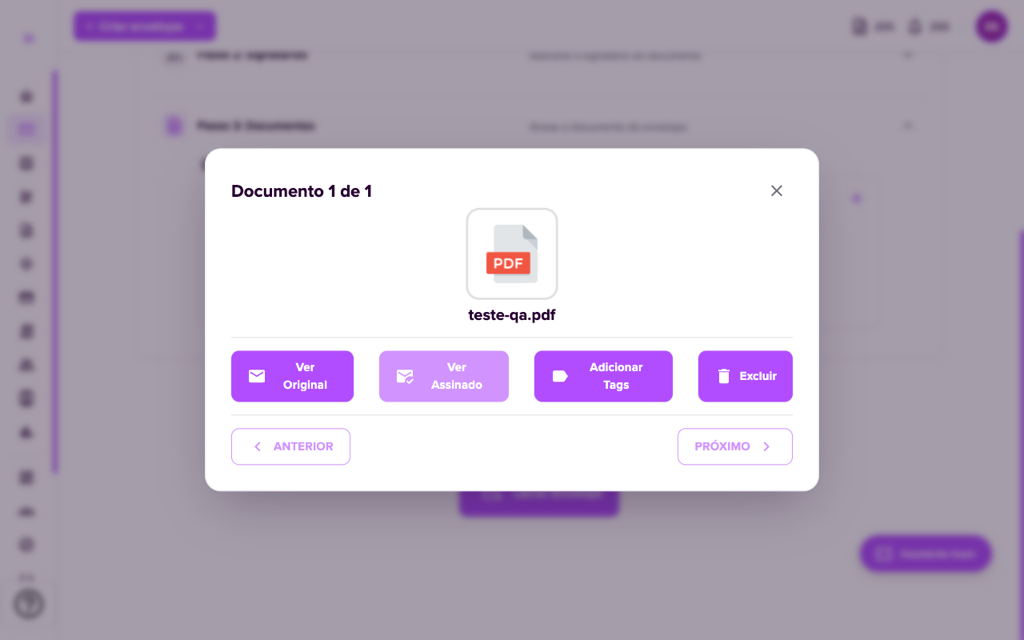
4. For the documents, you can only add them while the envelope is a draft. Clicking the document you can view the original, Add Tags (place the signature fields) and Delete, in draft or blocked status. See the step by step in Envelope creation.
If someone has already signed, the envelope can no longer be edited: cancel it and create a new one.
For more information visit our website https://assin.com.br/
See how simple it is, Assin?
Assin Digital Signature
Was this article helpful?
Thanks for your feedback!
Didn't find what you were looking for?
Our team answers Monday to Friday, during business hours. Count on us.