


How to edit the marker of an envelope
Even after sealing, an envelope’s marker can be changed: you can add, remove or swap the marker for another already registered one. For this the envelope must be blocked, so no signer can have signed yet.
Company only (PJ): This feature is not available on the individual account. See the difference in Using Assin as an individual.
1. In Created Envelopes, open the envelope. On the Envelope Details screen, click “Block Envelope” and confirm. See Block Envelope.
2. With the envelope blocked, click the pencil icon (Edit envelope information). In the Marker field, choose the new marker, remove the current one or leave it without a marker, and save.
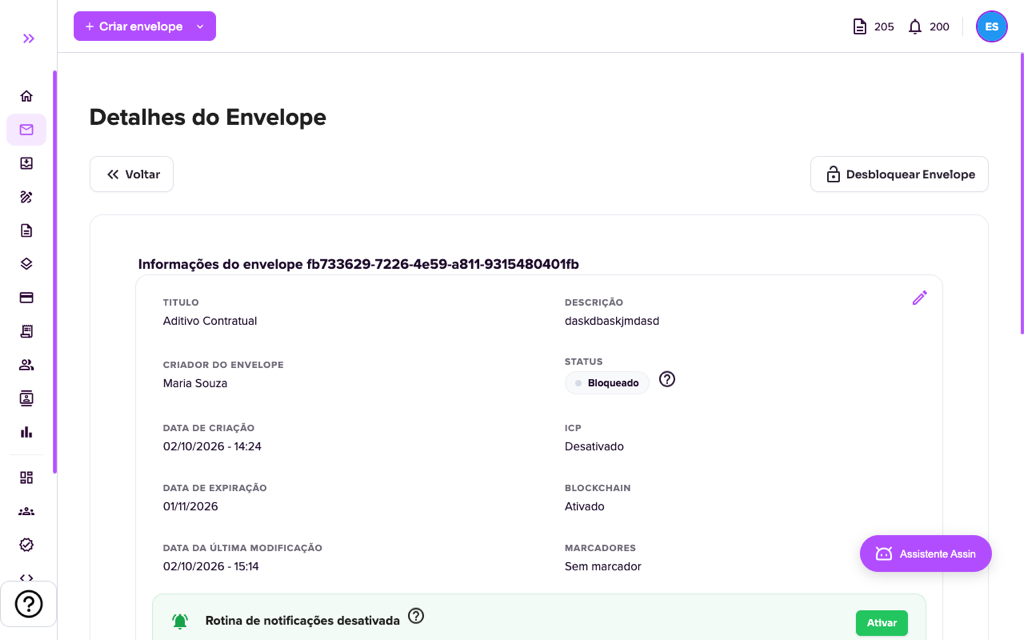
3. Click “Unblock Envelope”. The signers are notified and the change already applies.
For more information visit our website https://assin.com.br/
See how simple it is, Assin?
Assin Digital Signature
Was this article helpful?
Thanks for your feedback!
Didn't find what you were looking for?
Our team answers Monday to Friday, during business hours. Count on us.