


Envelope signature status
Assin, besides offering a digital document signing service, is also a platform for managing envelopes. You can view all your envelopes in the Created Envelopes tab after logging into the platform.
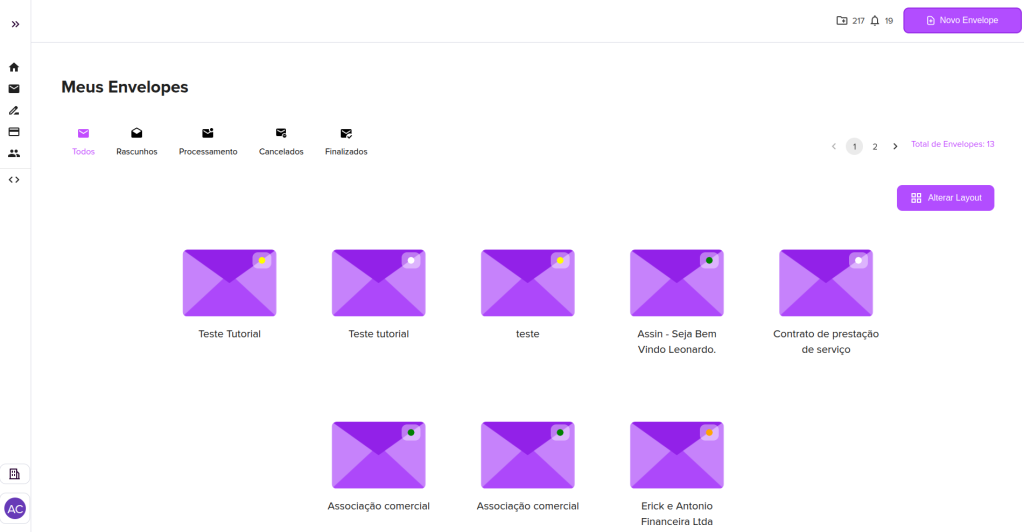
Here your envelopes can be filtered by status, which are:
Draft
When an envelope is created it automatically becomes a draft until it is sealed. While in draft status, you can edit its title, description, expiration date, manage signers and documents, and add fill-in fields to each document. You can filter all your documents in draft status by clicking the filter below “My Envelopes” in the “Drafts” section or by looking for envelopes with a white circular indicator.
Pending
All envelopes that have already been sealed and have not yet been signed and validated will have a pending status. While the envelope is still pending, you can cancel it, lock it to make edits before any signer signs, notify the signers, and validate their photos. If you request photo validation, make sure you click the validate photo button so that the signer’s status updates to complete and thus continue the envelope status. You can filter all your documents in pending status by clicking the filter below “My Envelopes” in the “Processing” section or by looking for envelopes with an orange circular indicator.
Cancelled
Cancelled envelopes are envelopes that for some reason were removed from signing. It is only possible to cancel an envelope if the signer or one of the signers has not yet signed the document. You can filter all your documents in cancelled status by clicking the filter below “My Envelopes” in the “Cancelled” section or by looking for envelopes with a red circular indicator.
Completed
Envelopes that have already been signed are categorized as complete. You can filter all your documents in complete status by clicking the filter below “My Envelopes” in the “Completed” section or by looking for envelopes with a green circular indicator.
Other Statuses
There are other statuses for your envelope that are not filtered, as they occur momentarily. One of these is Processing, which has a blue indicator. It appears right after the completion of your envelope’s signatures and represents the processing of that envelope to generate the final signed version registered on the Blockchain and, if applicable, on ICP-Brasil. It occurs momentarily and usually lasts less than a minute. After processing is completed, the envelope changes to complete status.
Another status that may occur, in special cases, is Error, with a red color. It may indicate that your registration is incomplete or there is some other pending issue that cannot be concluded without resolution. If your envelope has this status, contact support so we can verify and manually correct the issue.
For more information, visit our site https://assin.com.br/
See how simple Assin is?
Assin Digital Signature
Was this article helpful?
Thanks for your feedback!