


Facial recognition: how does it work?
From now on, all photos taken by your signer, requested at the time of envelope creation through the “Request User Photo” option, will be saved for facial recognition. Therefore, on the first photo request to your signer, a review request will arrive for you. In this request, you must analyze the photo and confirm whether it is indeed the person you designated as the signer of your document.
This is a measure to facilitate identity confirmation of signers, supported by Artificial Intelligence technology. Once you confirm that the photo is of your signer, the next requests, if the photo is at least 80% similar to the photo you approved, will be approved automatically. If the photo sent by the signer has less than 80% similarity, your review will be requested. This is to confirm that whoever is signing your document is the person you designated as the signer.
Facial recognition: How to request it?
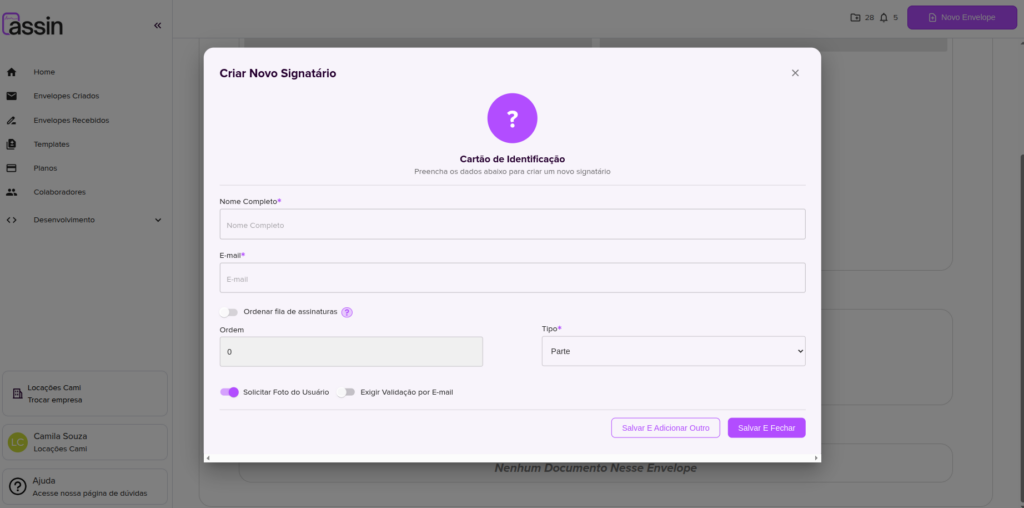
When adding a signer to your envelope, in the lower left corner you will find the “Request User Photo” option. Simply enable this option and at the time of signing the document, a photo of the signer will be requested.
Facial recognition: How to submit the photo?
Did you receive an envelope for signing and don’t know how to sign? Just follow the steps described here. Was “Document Validation” requested during the process? Follow the steps below:
1. Click the “Document Validation” button to start the process.
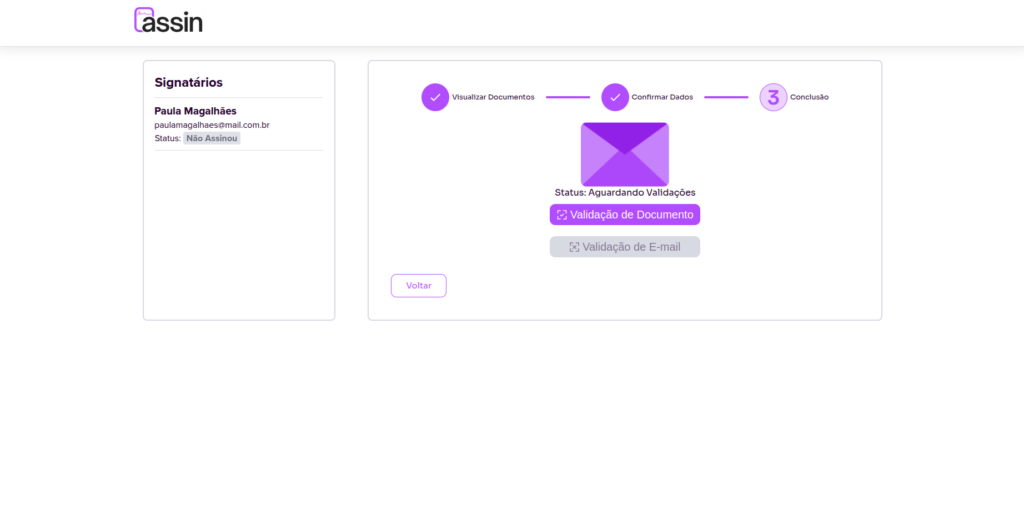
2. Position yourself in front of the camera, with good lighting, so that your face is clearly visible in the captured image. Remember to allow, in your browser, the site to access your camera, otherwise it will not be possible to capture the photo.
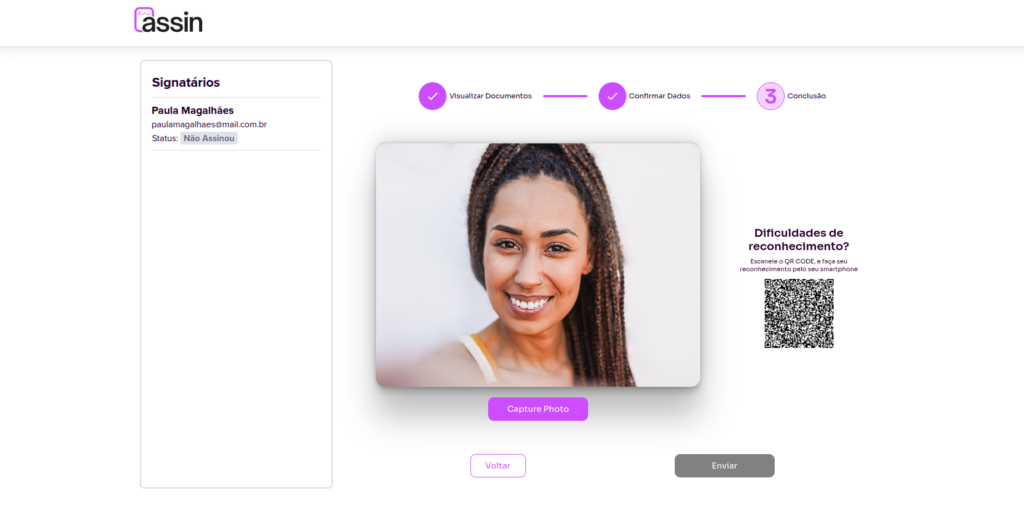
3. Click the “Capture Photo” button.
4. Check if the captured photo is adequate. If not, you can select “Take another”.
5. If everything is correct, you can click “Submit” and you’re done!
Finally, just complete the envelope signing steps and wait for your photo to be reviewed. While it has not been approved, the envelope will remain in “Pending” status. When the envelope owner approves or rejects your signature, you will receive a notification by email.
Facial recognition: How to validate the photo?
Did you request a user photo at the time of signing and the signer has already submitted the photo? Now you need to approve the submitted photo, to confirm that the person who signed your document is the person you sent it to. You can do this in two ways: by email or through the platform.
Validating the photo through the platform
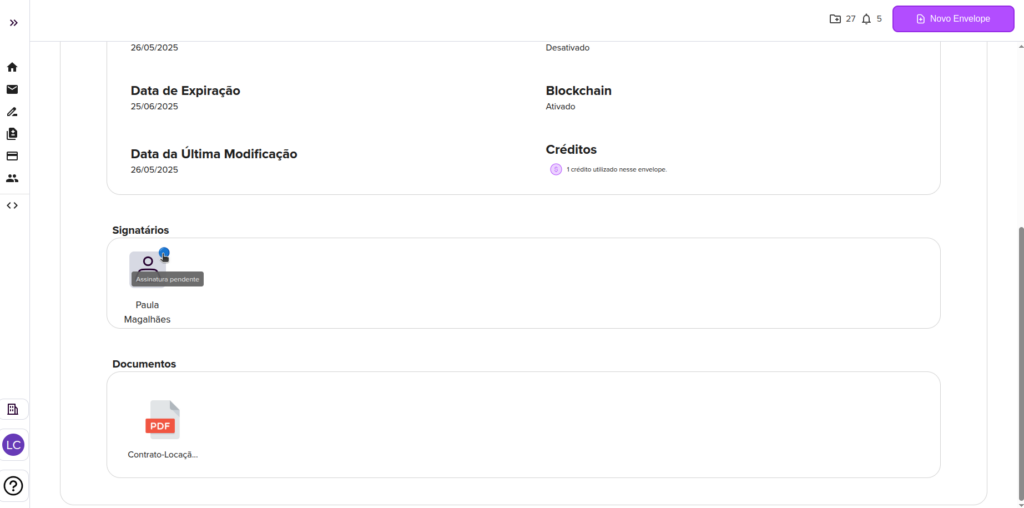
1. Go to the details of your envelope. In the signers section, click on the signer whose status is pending.
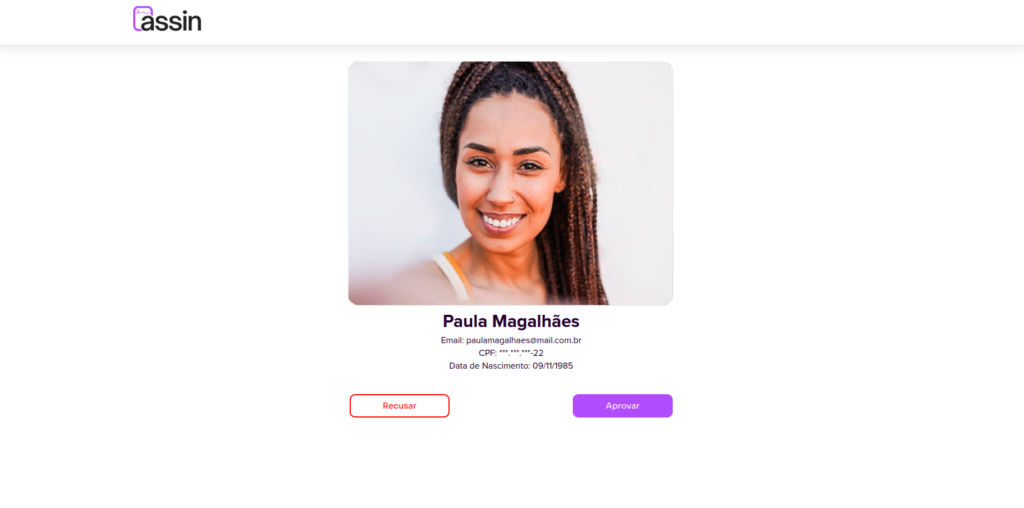
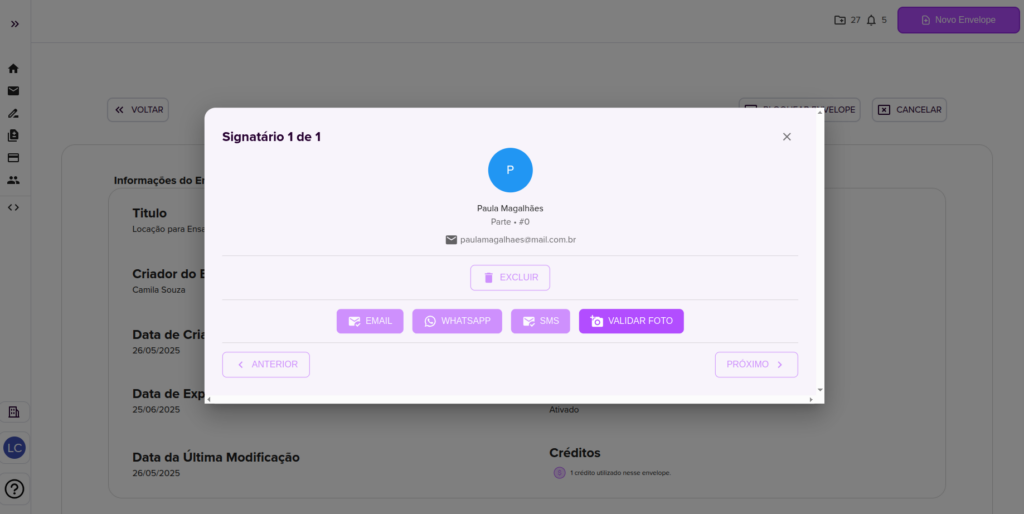
2. Inside the signer details modal, click the “Validate Photo” button.
3. Now you will see the photo submitted by the signer. Select Approve or Reject. If you choose to reject, enter the reason so the signer knows why the photo was not accepted. In this case, a new photo will be requested from the signer. If you choose to approve, simply confirm your action and you’re done!
Validating the photo by email
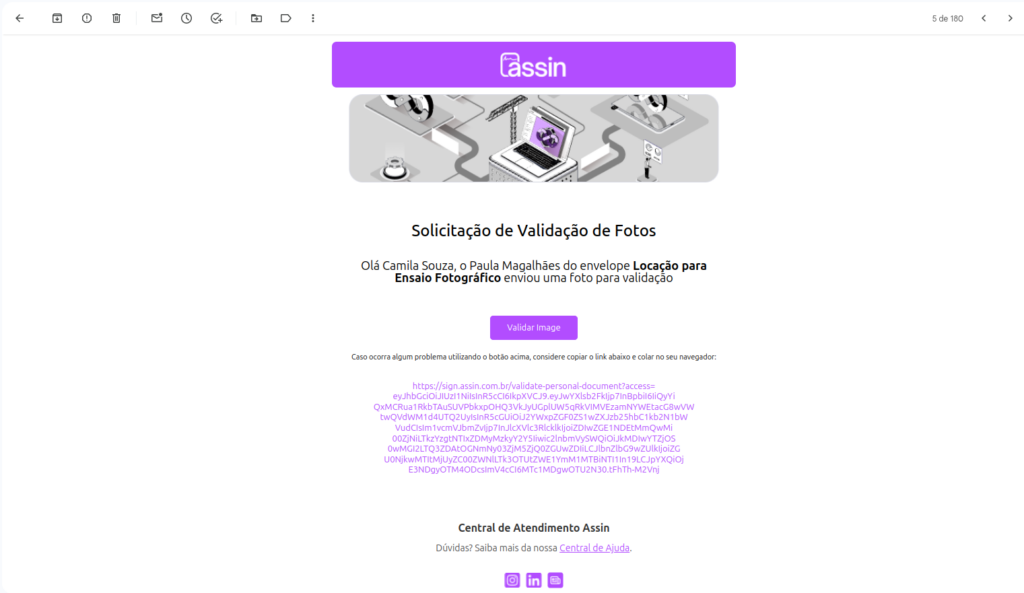
When the signer submits the photo, you will receive an email requesting the photo review.
1. Click “Validate image” and you will be redirected to the platform to perform the review.
2. Now you will see the photo submitted by the signer. Select Approve or Reject. If you choose to reject, enter the reason so the signer knows why the photo was not accepted. In this case, a new photo will be requested from the signer. If you choose to approve, simply confirm your action and you’re done!
For more information, visit our site https://assin.com.br/
See how simple Assin is?
Assin Digital Signature
Was this article helpful?
Thanks for your feedback!