


Folders: organize your envelopes
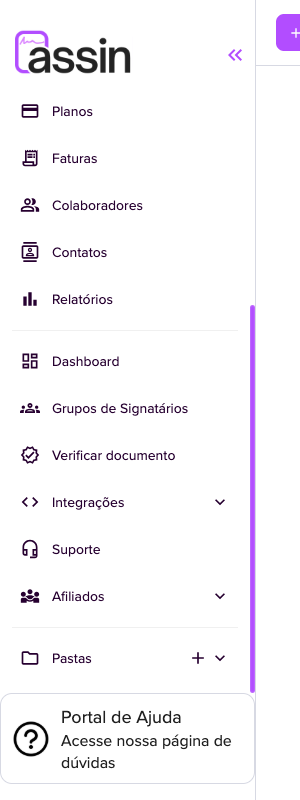
Folders help you organize your envelopes by subject, client or area (for example, HR, Legal, Clients). They are at the bottom of the side menu.
Create a folder
1. In the side menu, on the Folders item, click the + icon.
2. In the New folder window, give it a name (for example, “HR”, “Legal” or “Clients”) and, if you want, choose where it goes in Move to folder: at the Root (no parent folder) or inside another folder, creating a subfolder.
3. Save. The folder appears in the sidebar. Use the arrow to expand or collapse the folder tree and the + next to a folder to create a subfolder. To rename or move, open the folder menu and choose “Edit folder”.
Put envelopes in the folder
4. In the Created Envelopes list, select the envelopes and use the folder menu to Add to folder. In the window, search and choose the destination folder: the envelopes become linked to it.
5. To change folders, use Move envelope and choose the Destination folder.
See a folder’s envelopes
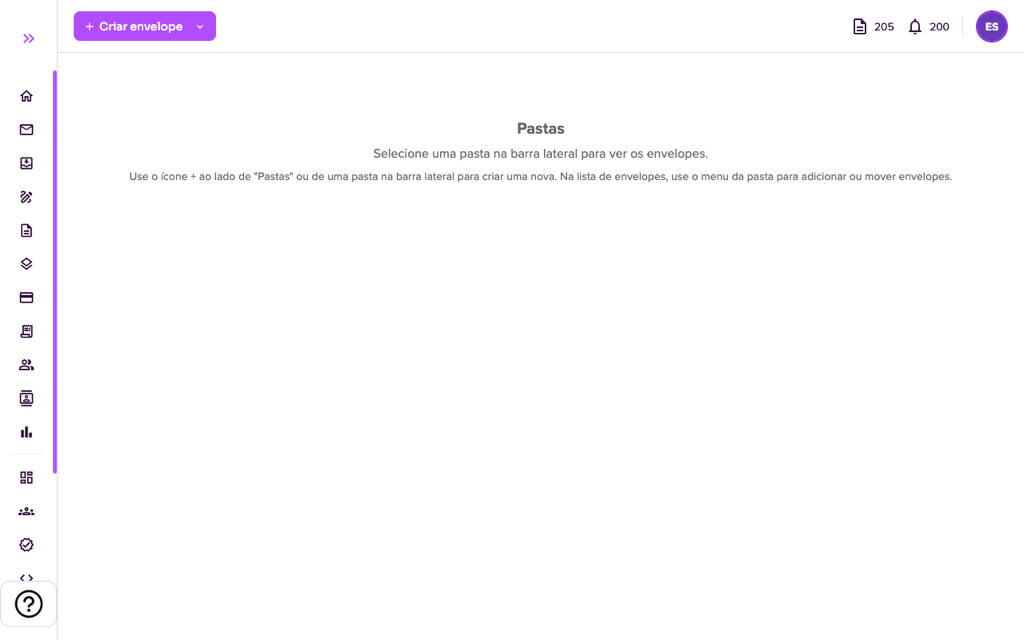
6. Click the folder in the sidebar. The Folders screen lists its envelopes, with signers, documents, creation and expiration dates. You can select several envelopes at once and use the Actions menu.
Folders and Markers serve different goals: folders organize your view; markers group envelopes to be signed all at once.
For more information visit our website https://assin.com.br/
See how simple it is, Assin?
Assin Digital Signature
Was this article helpful?
Thanks for your feedback!