


Managing your envelopes
Learn how to navigate and manage your envelopes on the Assin platform. In this section, you will find all the envelopes created by you, as well as those available for your signature.
Overview
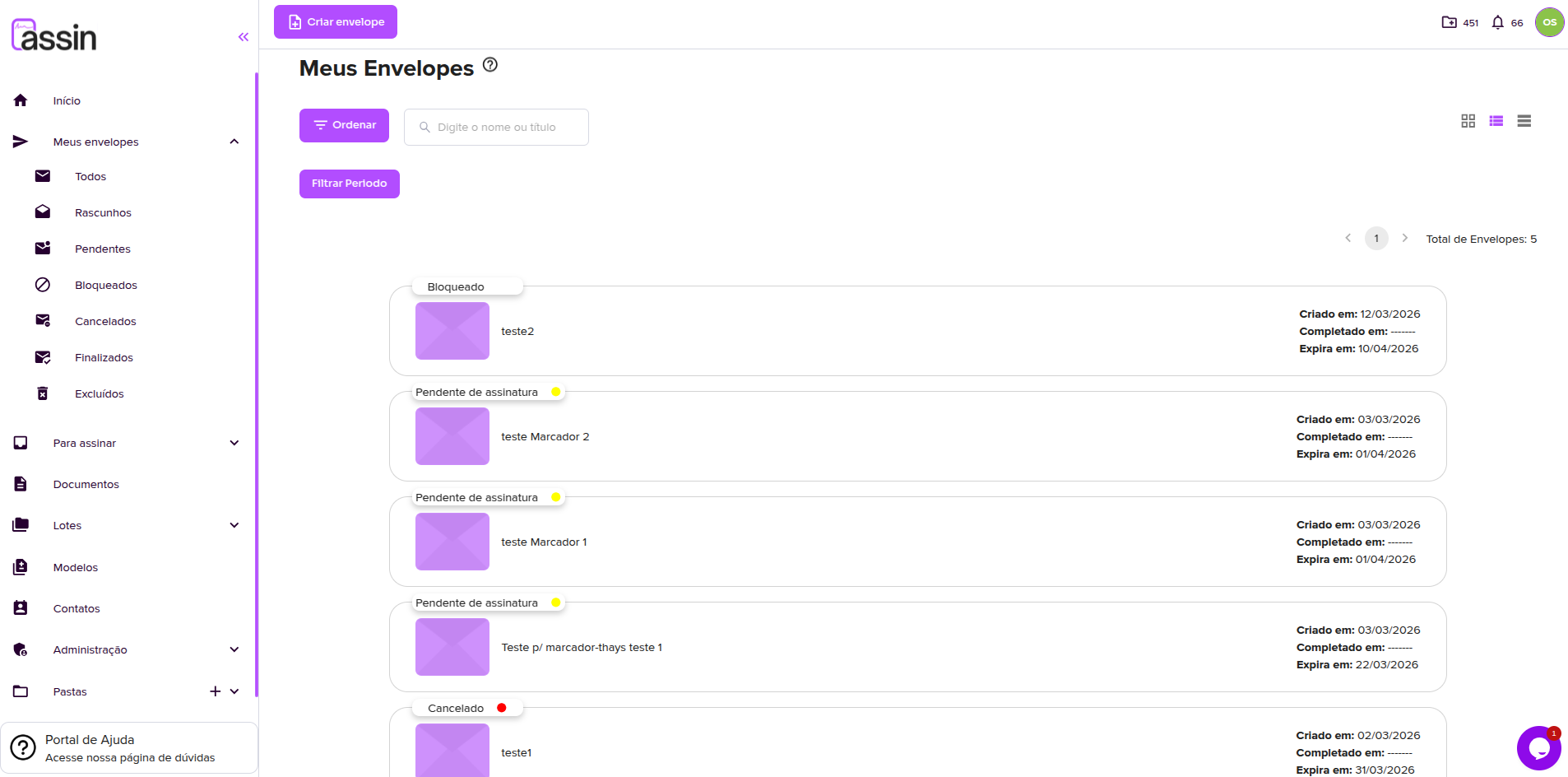
The platform has two main areas related to envelopes:
- My envelopes: gathers all envelopes created by you.
- To sign: displays the envelopes that were sent to you for signing.
Although they have different purposes, both screens share the same layout and features, making navigation and management easier.
Envelope statuses
Envelopes are organized by status, allowing you to easily track the progress of each document:
- Drafts: envelopes that are still being edited and have not been sent.
- Pending: envelopes that have been sent and are awaiting signatures.
- Completed: envelopes that have been signed by all participants.
- Canceled: envelopes that were canceled and are no longer in progress.
- Blocked: envelopes that have some editing restrictions after being sent.
- Deleted: envelopes removed from the main list.
You can access each status directly from the side menu.
Envelope list
On the main screen, envelopes are displayed in list or grid format, including information such as:
- Envelope name
- Current status
- Creation date
- Expiration date
- Completion date (when applicable)
Each item represents an envelope and can be clicked to view more details.
Searching envelopes
To find a specific envelope, use the search bar available at the top of the screen.
You can search by:
- Envelope title
- Name related to the envelope
Filters and sorting
The platform offers several options to help organize your envelopes:
Filter by period
Use the “Filter period” button to view envelopes within a specific date range.
Sorting
You can sort envelopes by the following fields:
- Title
- Description
- Expiration date
- Creation date
- Update date
- User ID
- Envelope ID
You can also define the sorting order as:
- Ascending (ASC)
- Descending (DESC)
Switching view
In the top-right corner of the screen, you can switch between different display formats:
- List
- Grid
This option allows you to adjust the view according to your preference.
Accessing an envelope
When you click on an envelope, you will be redirected to the details screen, where you can:
- View complete information
- Track the status
- Perform actions such as editing, canceling, or signing (when available)
Now that you know how to manage your envelopes, also check:
For more information, visit our website: https://assin.com.br/
See how simple Assin is?
Assin Digital Signature
Was this article helpful?
Thanks for your feedback!