


How to allow browser location access
Our platform requests access to your location to ensure security and compliance during the digital signature process. If you are having trouble authorizing access to your location, find your browser in the list below and see how to allow location access in different browsers.
Google Chrome
1. Access our website normally.
2. When prompted, click “Allow” in the permission message that will appear at the top of the page.
3. If you don’t see the message:
Click the page information icon on the left side of the address bar.
Go to “Site settings”.
Find the “Location” option and select “Allow”.
4. Reload the page.
Mozilla Firefox
1. Access our website.
2. When prompted, click “Allow location access” in the message that will appear at the top of the window.
3. If you want to review or change:
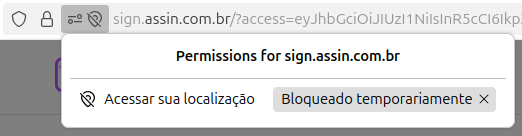
Click the location icon on the left side of the website address.
Click “Allow”. If you have blocked it before, simply remove the “Temporarily blocked” tag by clicking the X.
4. Refresh the page.
Microsoft Edge
1. Access the platform.
2. Authorize location access by clicking “Allow” in the notification that appears at the top of the screen.
3. If you need to change it later:
Click the lock icon in the address bar.
Select “Permissions for this site”.
Under “Location”, change to “Allow”.
4. Reload the page.
Safari (Mac)
1. Access the document signing page.
2. When prompted, click “Allow”.
3. If the prompt does not appear:
Go to the Safari menu > Preferences > Websites.
Click “Location” in the side menu.
Next to the site, choose the “Allow” option.
4. Reload the page.
Safari on iOS may also request access via a pop-up. Always authorize to ensure the correct functioning of the signature.
Opera
1. Access our website.
2. If a message appears at the top, click “Allow”.
3. To configure manually:
Click the lock icon next to the address.
Go to “Site settings”.
Find the “Location” option and change to “Allow”.
4. Refresh the page.
Was this article helpful?
Thanks for your feedback!