


Reports and Excel export
Reports help managers follow and audit the company account. They are in the side menu, under Reports, and appear for those with the manager or administrator role.
Company only (PJ): This feature is not available on the individual account. See the difference in Using Assin as an individual.
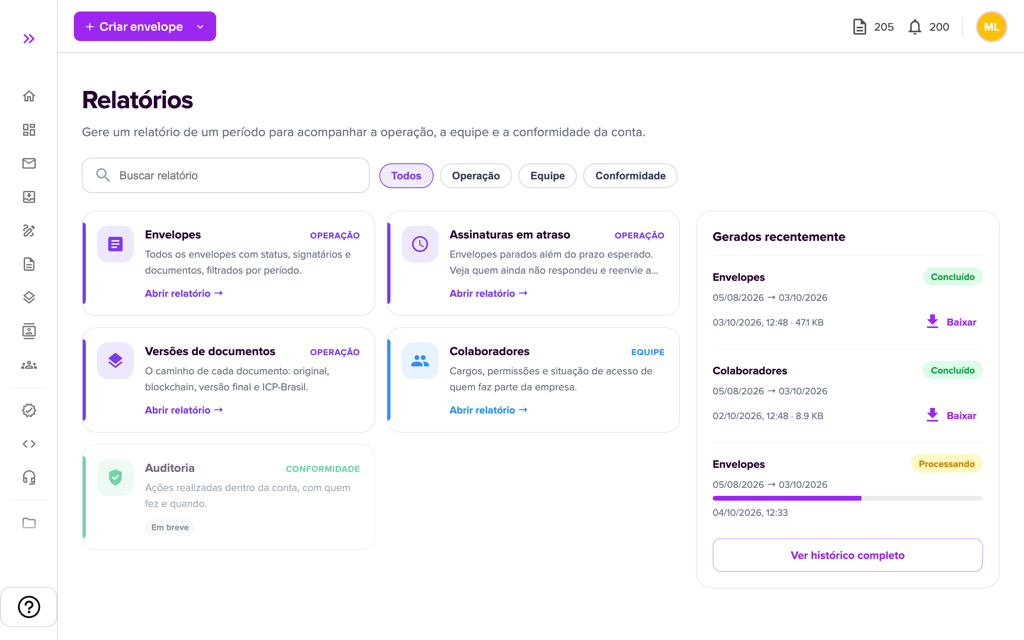
Available reports
- Envelopes: all envelopes, status, signers and documents.
- Collaborators: roles, permissions and access status of the team.
- Overdue Signatures: envelopes waiting for signature beyond the expected time, so you know who has not responded yet.
- Document Versions: the validation path of each document (V1 Original, V2 Fingerprint, V3 Final and V4 ICP-Brasil).
- Audit: report of actions performed on the account. Shown as “Coming soon” (in development).
Use the search and the category filters (Operation, Team, Compliance) to find a report. Next to them are the latest generated reports, with a Download button when ready, and the See full history shortcut. Click the desired card to open the report.
Envelopes report
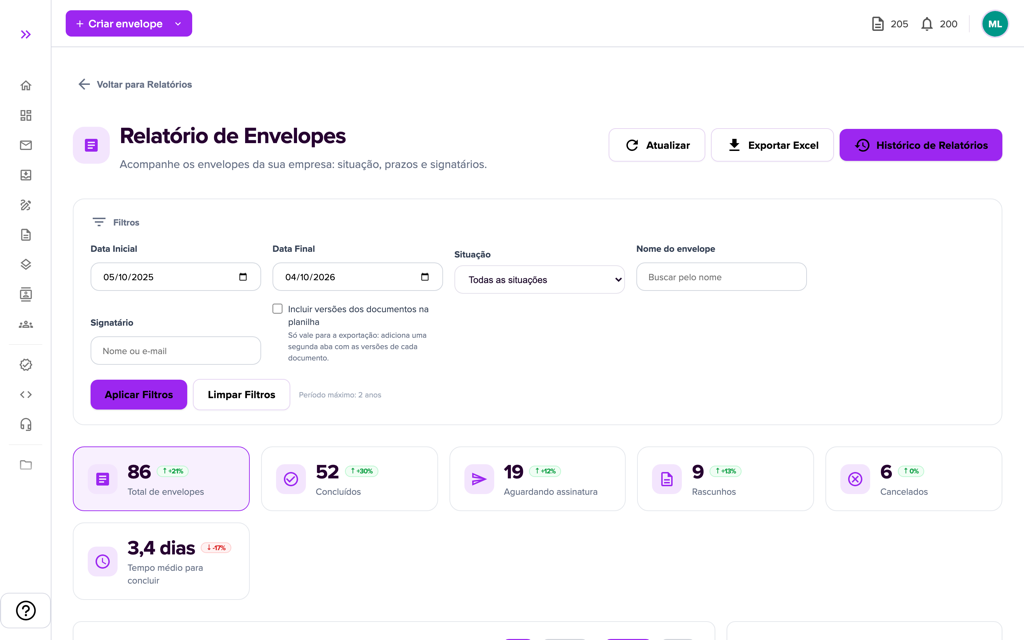
1. At the top are the Refresh, Export Excel and Report History buttons.
2. Under Filters, choose the period (Start Date and End Date, up to 2 years), the Status (Draft, Waiting for Signature, Completed, Canceled or Blocked), the Envelope Name and the Signer (name or e-mail). Click “Apply Filters” or “Clear Filters”.
3. Check “Include document versions tab” if you want a second tab in Excel with versions V1 to V4 of each document.
4. See the indicators at the top: Total, Completed, Pending, Drafts, Canceled and Average time, with the comparison to the previous period. Click an indicator to filter the table (click again to remove the filter). Active filters appear as tags you can remove with one click. Further down there is the chart of envelopes per period (by month or week), the completion rate and the detailed table.
Overdue Signatures
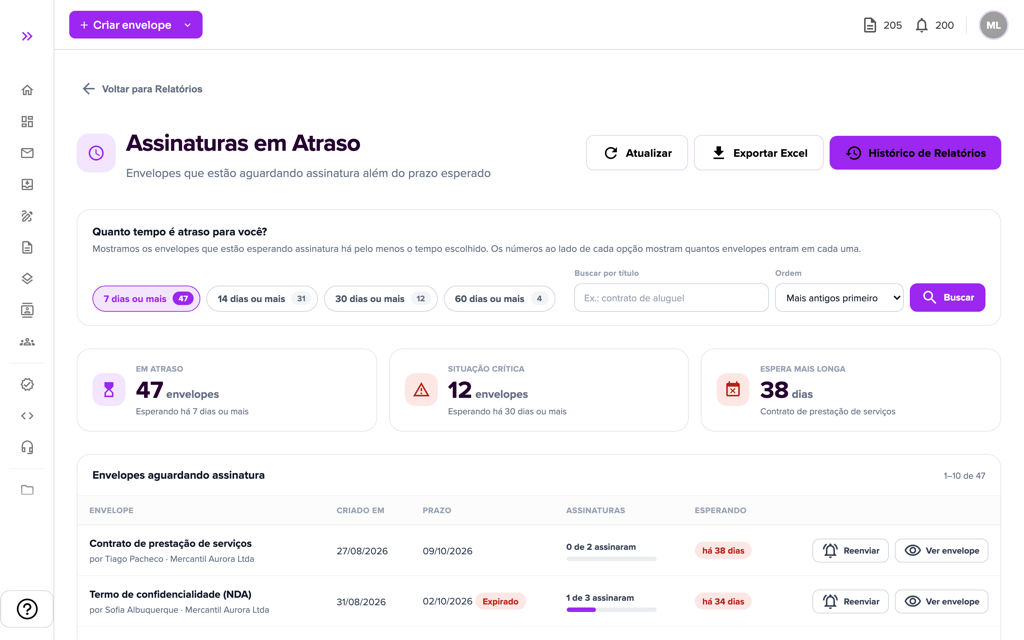
Choose the waiting time (7, 14, 30 or 60 days or more, each option shows how many envelopes match) and see who created them, when they expire, how many people have already signed and for how many days the envelope has been waiting. You can search by title and sort by oldest or newest. Resend opens a confirmation before notifying the pending signers, and the row then shows “Reminder sent”. You can also export to Excel.
Collaborators report
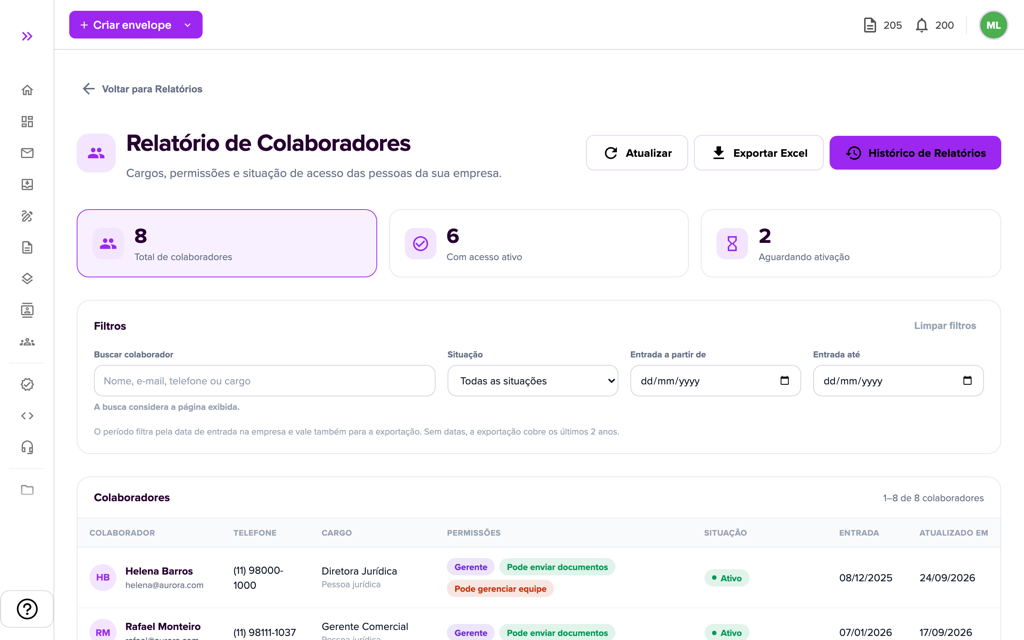
Shows the total of collaborators, how many are Active, how many are Awaiting activation. Click an indicator to filter. There are filters by join period, status (includes Removed) and search by name or e-mail, and the list shows name, e-mail, role, permissions and dates (as cards on mobile). See how to manage the team in Collaborators and permissions.
Document Versions
Each document shows steps V1 to V4 as a progress line: completed, pending, with error or not applicable (V4 when ICP-Brasil validation is not active). Click With ICP-Brasil to filter only those documents.
Report History
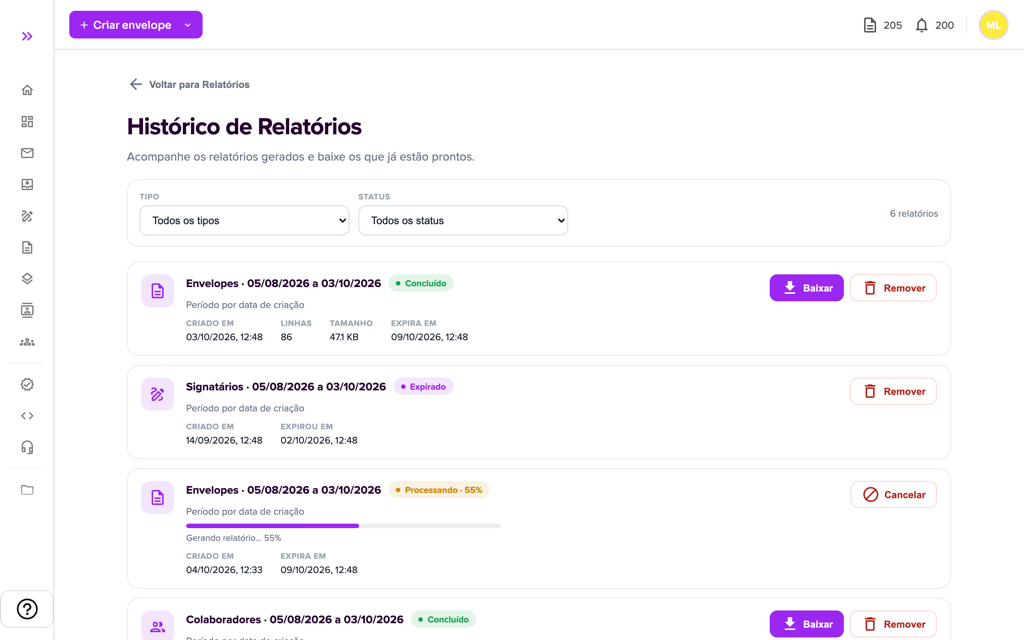
When you export, the report is generated in the background. In Report History you follow the generated reports and download the file when it is ready. Filter by Type (Envelopes, Financial, Notifications, Document Versions, Signers, Collaborators) and by Status (Waiting, Processing, Completed, Failed, Expired or Canceled). Each report appears as a card with the type, period, progress, number of rows, size and expiry date (highlighted when 3 days or fewer remain). Cancel and remove ask for confirmation. Reports with Expired status can no longer be downloaded: generate again.
For more information visit our website https://assin.com.br/
See how simple it is, Assin?
Assin Digital Signature
Was this article helpful?
Thanks for your feedback!