


Using Contacts in the Envelope
When creating or editing an envelope, you can add signers using the contacts you have already saved. This speeds up the process and avoids retyping the same data.
Select from the contact list
1. On the Envelope Details screen, open Step 2: Signers and click “Add signer”. The Create New Signer window opens.
2. Click Select from contact list. In the Select Contact window, use the “Search by name, e-mail or phone…” field (type at least 3 letters) and choose the person. The list brings your personal contacts and, on a company account, the company contacts as well.
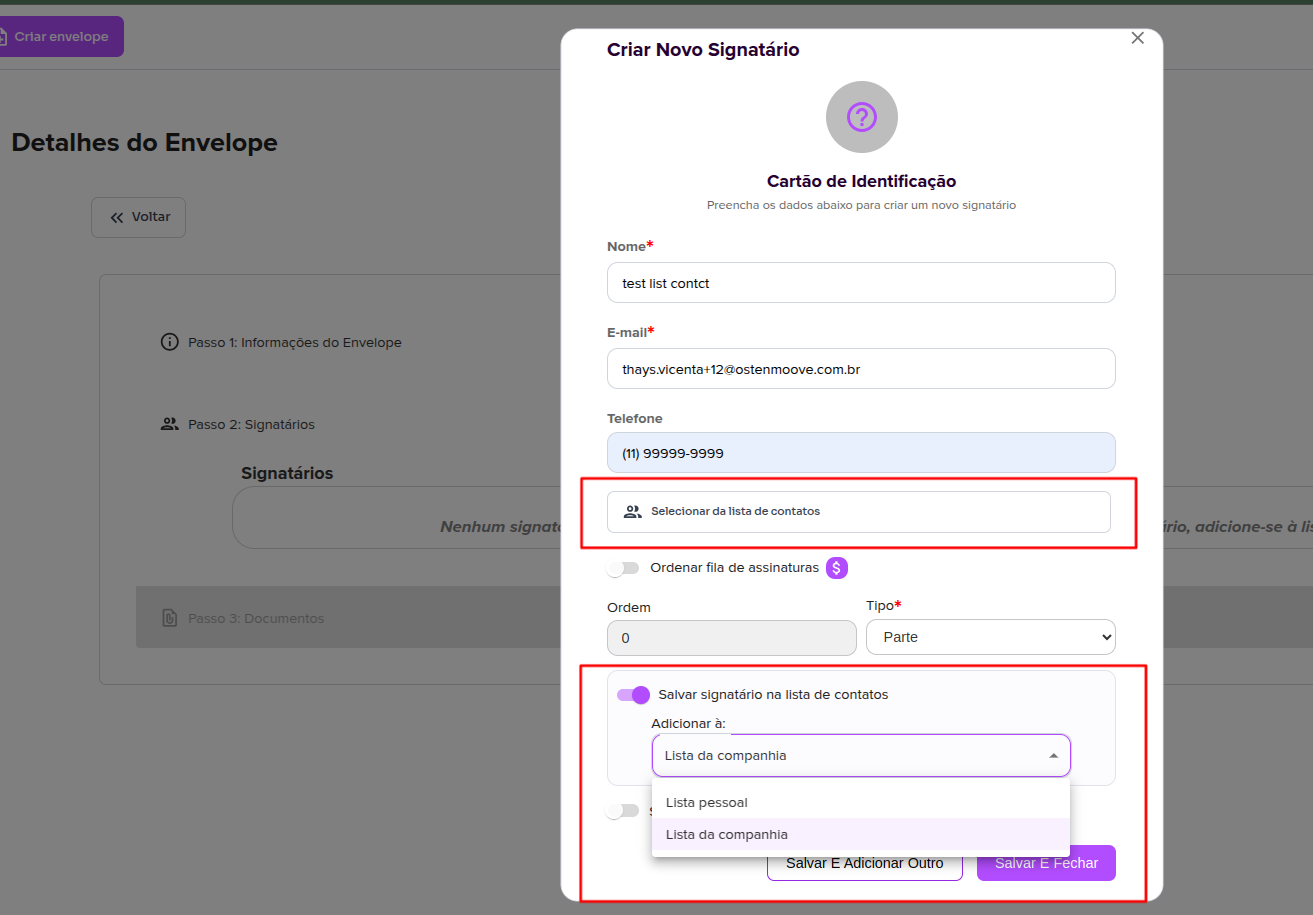
3. When you choose the contact, Full Name, E-mail and Phone are filled in automatically.
Create a new signer
If the person is not in your contacts yet, fill in Full Name, E-mail and Phone (optional) manually, set the Order and the Type and, if needed, the Request User Photo and Require E-mail Validation options. Then click Save and Add Another or Save and Close. See more in Envelope creation.
Save the signer as a contact
In the same window, turn on Save signer to the contact list and, under Add to:, choose:
- Personal list
- Company list (only appears on a company account and is only saved if you are a manager)
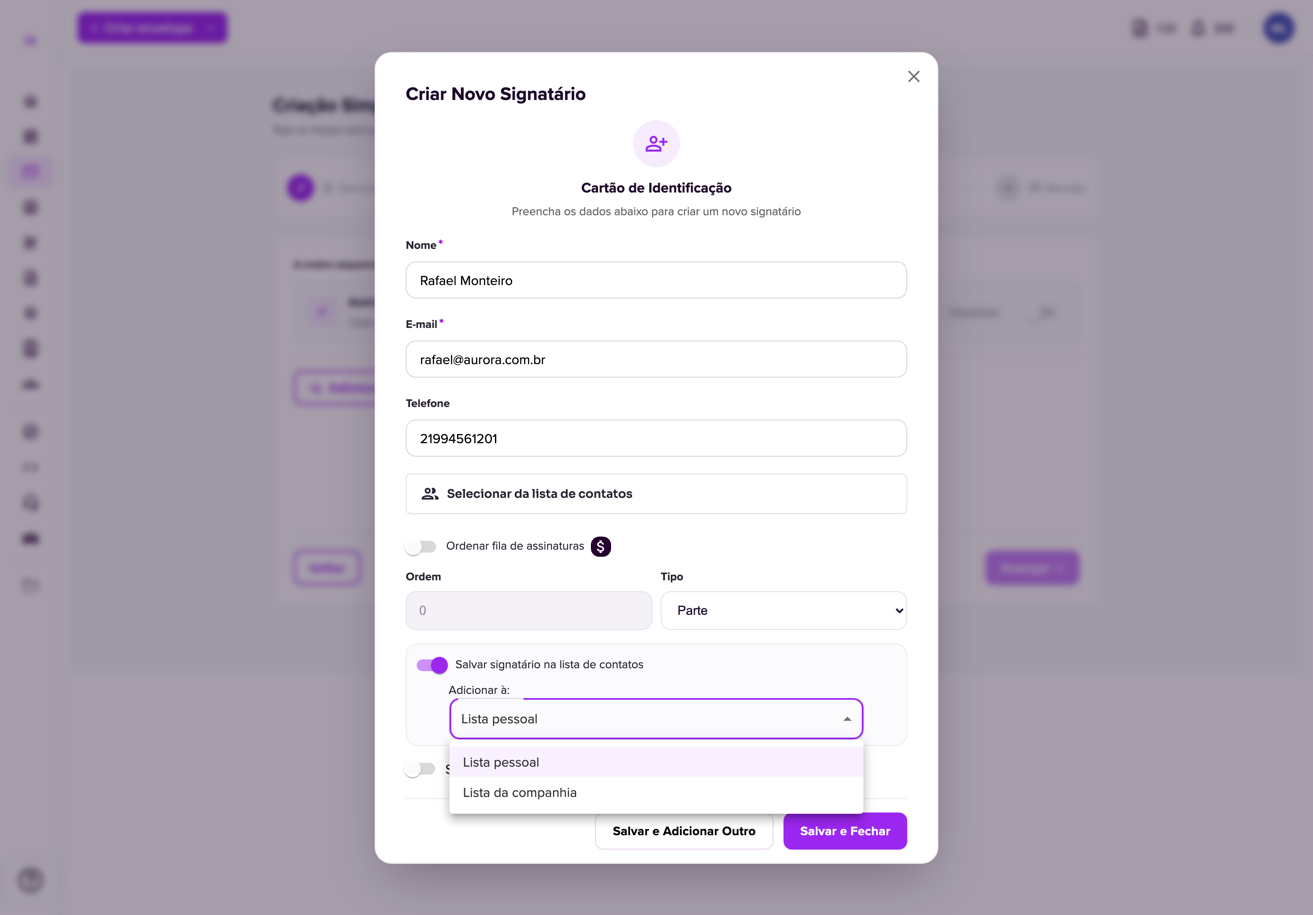
If the contact cannot be saved, the signer is still added to the envelope. Afterwards, they can be reused in new envelopes.
Need several people at once?
If you always sign with the same set of people, create a signer group and import everyone at once.
For more information visit our website https://assin.com.br/
See how simple it is, Assin?
Assin Digital Signature
Was this article helpful?
Thanks for your feedback!
Didn't find what you were looking for?
Our team answers Monday to Friday, during business hours. Count on us.